The admin dashboard
Tour of the Blog Lite 2 admin panel: the sidebar, dashboard statistics, latest posts and comments, most read posts and setup tips.
After you log in at yoursite.com/admin/ you land on the dashboard, your overview of the blog.
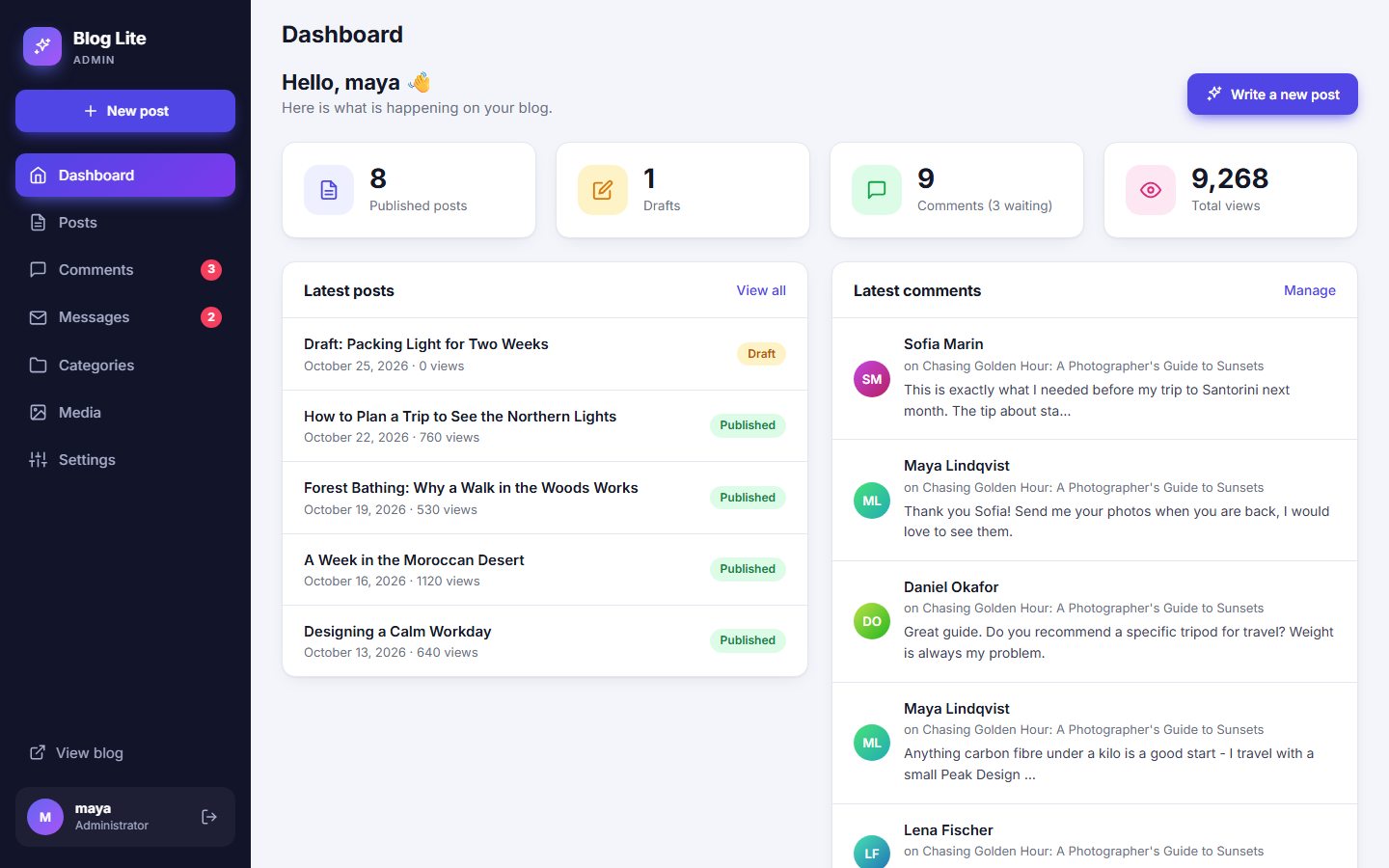
The sidebar
| Item | What it opens |
|---|---|
| New post | The post editor. See Writing posts. |
| Dashboard | This overview. |
| Posts | All posts and drafts. See Managing posts. |
| Comments | Approve or delete visitor comments. A red badge shows how many wait for approval. See Comment moderation. |
| Messages | Messages from the contact form, with a badge for unread ones. See Messages inbox. |
| Categories | See Categories. |
| Media | Uploaded images. See Media library. |
| Settings | All options. See General. |
At the bottom you find View blog (opens your public site in a new tab) and your user card with the log out button.
Statistics
Four cards show the number of published posts, drafts, comments (with how many are waiting) and total views of all articles.
Latest posts and comments
Two panels list your five newest posts (with status and views) and your five newest comments. Click a post title to edit it. Comments waiting for approval carry a "Pending" label.
Most read
Once your posts have views, a bar chart shows your five most-read articles so you can see what your audience likes.
Setup tips
The dashboard warns you about things that need attention:
- The
dataoruploadsfolder is not writable. - The AI writer is enabled but has no API key yet. See AI API keys (Groq, DeepSeek, OpenAI).
- You have not created a category yet.
On a phone
On small screens the sidebar becomes a slide-out menu. Tap the menu icon in the top left to open it.
Last updated