The blog homepage
How the Blog Lite 2 homepage works: the hero section, featured latest post, article grid, popular posts, tags and menu, and how to customise each part.
The homepage is the first thing visitors see. Blog Lite 2 builds it automatically from your latest posts.
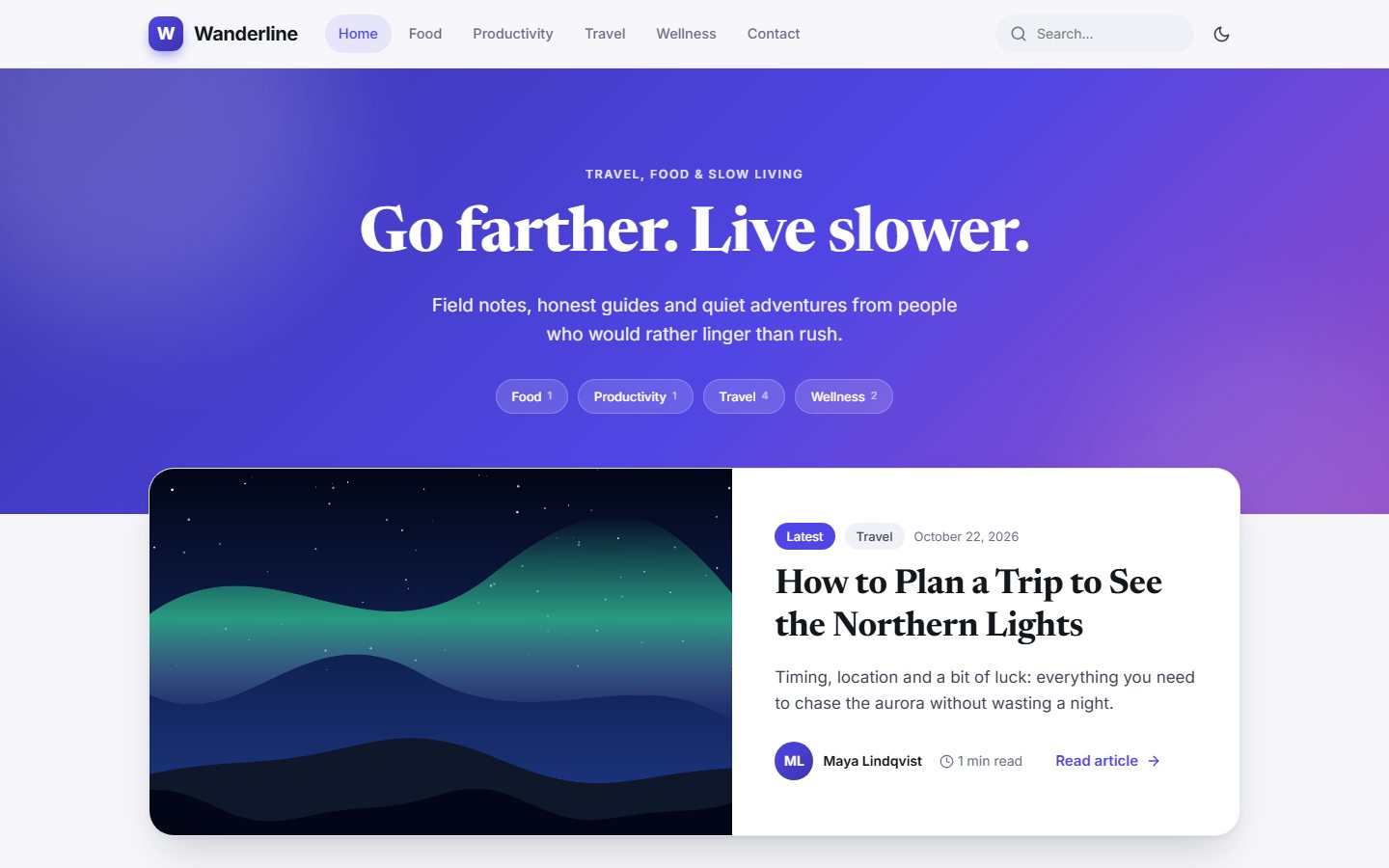
The header and menu
The header is always visible while scrolling. It shows your logo (or blog name), a menu, a search box and the light/dark switch. The menu contains Home, up to five of your categories that have posts, and Contact if the contact page is turned on.
The hero section
The large coloured area shows your tagline, a big headline and a short intro text, plus a chip for each category with the number of posts. Change the texts in Settings → General (General) and the colour in Settings → Appearance (Appearance).
The featured post
On the first page, your newest published post is shown large below the hero with its cover image, category, date, author and reading time.
The article grid
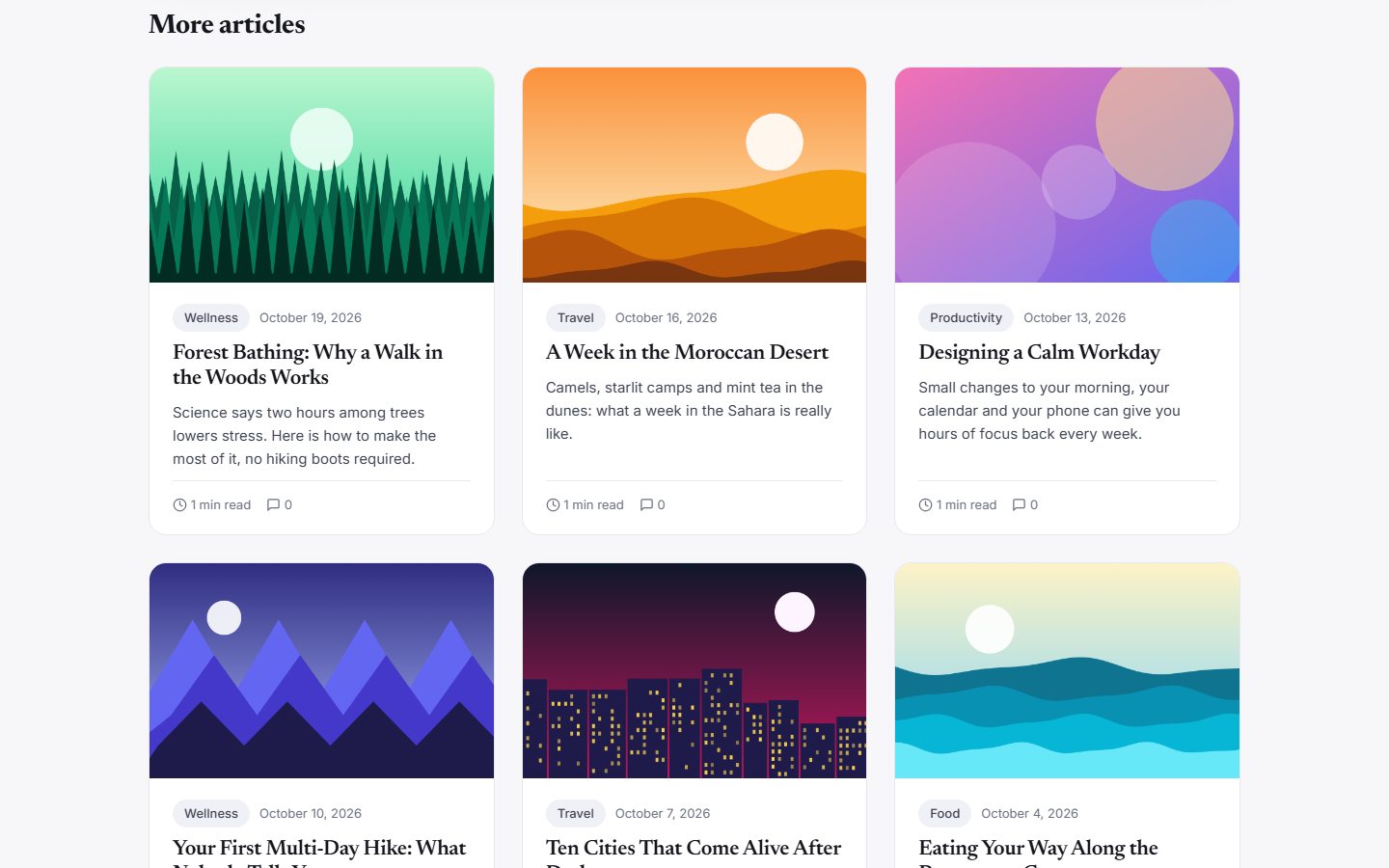
Each card shows the cover image, category, date, title, a short summary, reading time and the number of comments. Hovering lifts the card slightly.
- If a post has no cover image, a colourful gradient with the first letter of the title is created automatically.
- The summary is the post's excerpt. If you left it empty, the first part of the text is used. See Writing posts.
- The number of posts per page is set in Settings (1 to 50). Page numbers appear below the grid.
Popular posts and tags
Below the grid, a Popular right now section lists your four most-read posts, and a tag cloud shows your most used tags. This section appears once you have at least two posts.
The footer
The footer shows your "About the blog" text, links to categories and the contact page, your social links and an RSS icon. See RSS feed and sitemap.
No posts yet?
A new blog shows a friendly empty state with a button that takes you to the editor. Publish your first post and the homepage fills itself.
Last updated