Moderating comments
Approve, hide or delete visitor comments in the Blog Lite 2 admin panel, understand replies and pending comments, and keep spam away.
Open Comments in the sidebar to review what visitors have written. A red number next to the menu item tells you how many comments wait for approval.
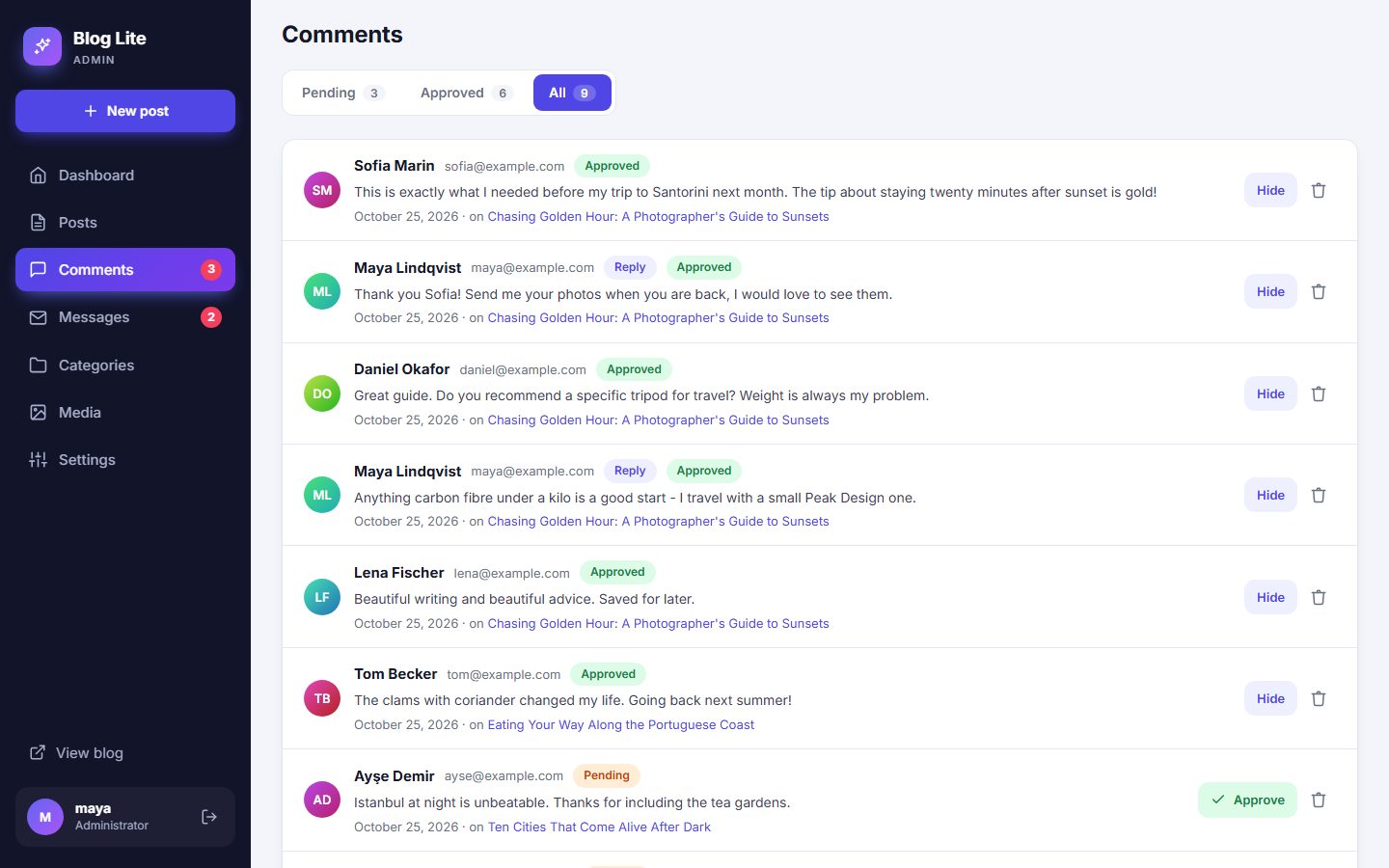
The tabs
| Tab | Shows |
|---|---|
| Pending | New comments waiting for your decision. They are not visible to visitors yet. |
| Approved | Comments that are live on your site. |
| All | Everything. |
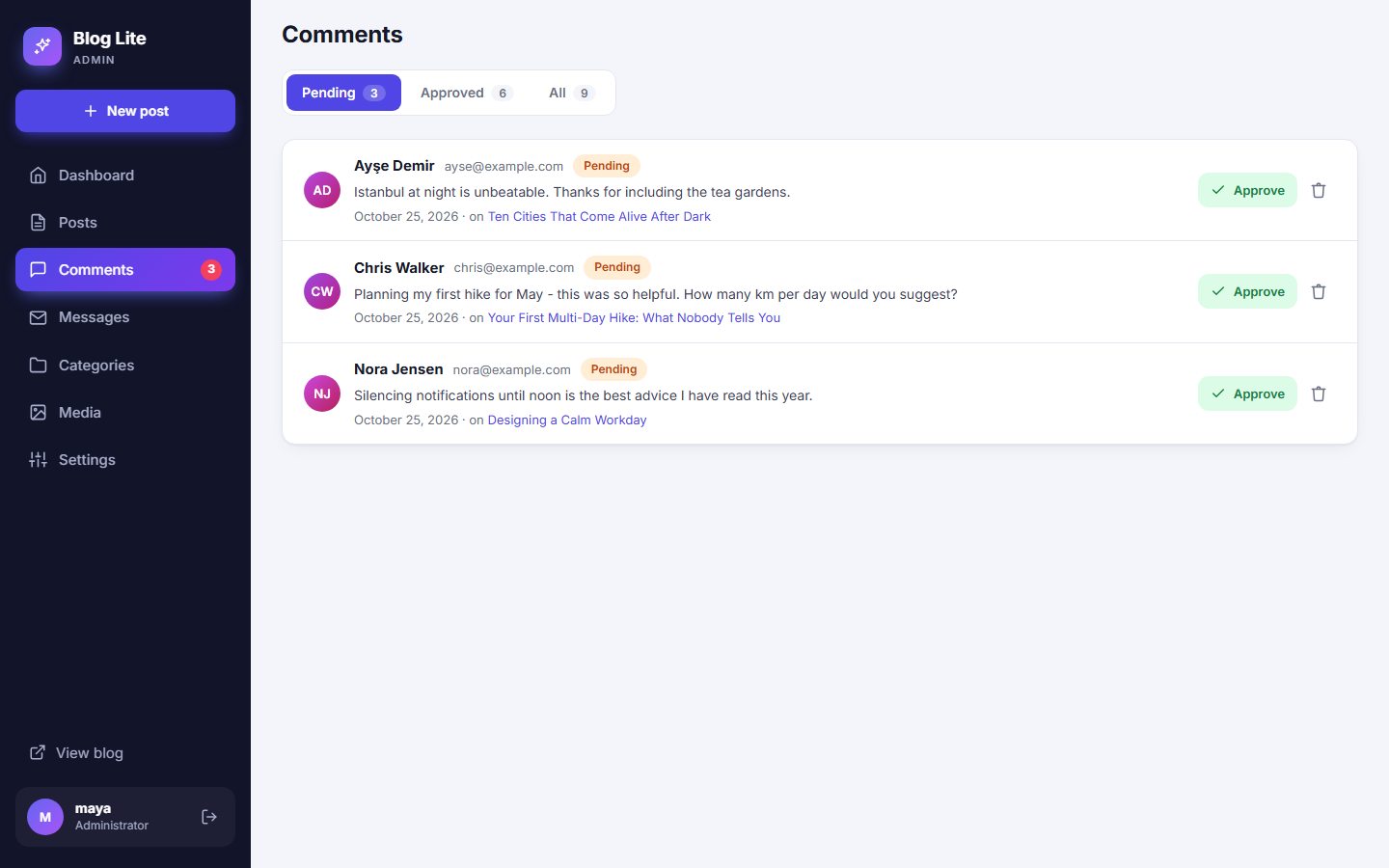
The actions
- Approve - publishes the comment.
- Hide - takes an approved comment off the site (it returns to Pending).
- Bin icon - deletes the comment for good, after a confirmation.
Each row shows the visitor's name and email (email is visible only to you), the text, the date and the post it belongs to. Click the post title to see the comment in context.
Replies
Replies carry a Reply label. A reply only appears on the site if it is approved. If you delete a comment, its replies are deleted too.
Answering a comment
Visitors can reply on the article page. Open the post, find the comment and press Reply. Your answer is posted like any other comment, so approve it if moderation is on.
Moderation settings
- Require approval for every comment (recommended) - see Comments and contact.
- Turn comments off for the whole blog, or for one post in its editor. See Writing posts.
Fighting spam
Hidden trap fields and rate limits stop most bots. Keep approval switched on and you will never see spam on your site. See Security.
Last updated