User manual · version 2.0
One Page Site user manual
Step-by-step guides with screenshots to install, customise and run your one page website.
1Getting started
What is One Page Site?One Page Site is a PHP script for building one page websites without a database. Learn what it does, who it is for and what you can build with it.
System requirementsCheck the hosting requirements for One Page Site: PHP version, required extensions (GD, DOM, SimpleXML, mbstring), folder permissions and Apache settings.
How to install One Page SiteStep-by-step installation of the One Page Site PHP script: upload the files, set folder permissions, open the admin panel and change the default password.
Log in to the admin panelHow to log in to the One Page Site admin panel, what the default username is, what to do after the first login and what happens after failed login attempts.
Quick start: build your first website in 10 minutesQuick start: build a one page website with One Page Site. Set the basics, add a hero, features, gallery and contact section, then pick a template.
2Your website (front end)
How your one page website worksUnderstand the structure of a One Page Site website: header and menu, hero, content sections, latest blog posts and footer, and how each part is generated.
Choose a templateCompare the three One Page Site templates (Modern, Elegant, Midnight), see screenshots and learn how to switch templates without losing any content.
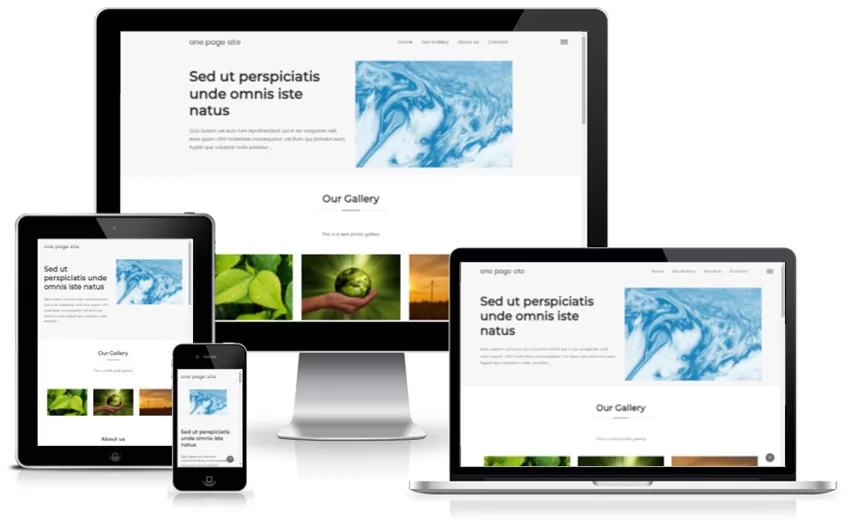
Mobile and responsive designAll One Page Site templates adapt to phones, tablets and desktops. See how the menu, sliders, galleries and forms behave on small screens.
The menu and section linksLearn how the One Page Site menu is generated from your sections, how section anchors work, how to hide a section from the menu and how to link to a section.
The contact formHow the One Page Site contact form works for your visitors, which spam protections are active and where messages are delivered. Includes sending limits.
The blog on your websiteHow the built-in blog appears on your One Page Site website: latest posts on the home page, the blog list with search and pagination, and single post pages.
Built-in SEO featuresSEO features of One Page Site: titles, meta descriptions, Open Graph, structured data, SEO friendly URLs, fast loading and mobile design.
3Section types
Section types overviewOverview of the ten One Page Site section types: information and hero, features, gallery, slider, team, testimonials, pricing, FAQ, call to action and contact.
Add an Information (hero) sectionCreate the hero banner or an about section with a headline, rich text, picture and button. Explains the tagline, image position and rich text editor options.
Add a Features sectionShow your benefits or services as a grid of cards with icon, title, subtitle and description. Step-by-step guide to the One Page Site Features section.
Add a photo gallery sectionCreate a responsive photo gallery with captions and a full-screen lightbox. Upload many images at once, add titles and descriptions and reorder pictures.
Add an image slider sectionCreate a touch-friendly image slider with captions, arrow buttons and dots. Ideal for projects, products and portfolio items. Guide for One Page Site.
Add a team members sectionIntroduce your team with round photos, names and roles. Learn how to add team members, reorder them and what happens when a photo is missing.
Add a testimonials sectionAdd customer quotes and reviews to your one page website with name, role and company. Build trust with social proof in a few clicks.
Add a pricing table sectionCreate pricing plans with price, feature list and button, and highlight your most popular plan. Step-by-step guide for One Page Site.
Add an FAQ sectionAdd frequently asked questions with expandable answers. The FAQ section also outputs FAQ structured data that can help your search results.
Add a call to action sectionCreate a bold full-width banner with a headline, text and one button to drive visitors to take action. One Page Site CTA section guide.
Add a contact form sectionPut a spam-protected contact form with your phone, email, address and social links directly on your one page website. Setup guide.
4Admin panel
Admin panel overviewA guided tour of the One Page Site admin panel: dashboard, sections, blog posts, appearance, branding and SEO, and settings. Find your way around quickly.
The dashboardWhat the One Page Site dashboard shows: section and post counts, quick actions, your sections, recent posts and the system status with permission checks.
Manage sectionsUse the Sections page to reorder, edit, hide from the menu, preview and delete the sections of your one page website. Includes what happens to images on delete.
Edit section contentHow the section editor works: titles, rich text, repeatable items, reordering, images and links. Applies to every One Page Site section type.
Upload and manage imagesSupported image formats, size limits, automatic resizing and thumbnails in One Page Site. Learn how logos keep transparency and how to fix upload problems.
Write and manage blog postsPublish, edit and delete blog posts in One Page Site. Add a title, date, formatted text and a photo gallery, set the cover image and reorder pictures.
Appearance: template, colour and fontsSwitch templates, set your brand accent colour, pick a font and change the base text size on the One Page Site Appearance page.
Branding: logo, site name and contact detailsUpload your logo, set the site name and footer text, and enter phone, email and address shown in the footer and contact section of your website.
SEO title, description and social linksFill in the website title, meta description and keywords for Google, and add Facebook, X, Instagram, LinkedIn and YouTube links in One Page Site.
General settingsEvery option on the One Page Site Settings page: contact email, time zone, date format, image width and quality, blog switch and SEO URLs.
Admin security and changing your passwordHow to change the One Page Site administrator password and username, and an overview of the built-in protections: hashing, CSRF, lockout and content cleaning.
5Reference and help
Folder and file structureWhat every folder and data file in One Page Site does: data XML files, config.php, templates, uploaded images, admin and include folders. Know what to back up.
Backup and restoreBecause One Page Site has no database, a backup is just a copy of a few folders. Learn what to copy, how often, and how to restore your website.
Customise and create templatesDeveloper guide: create your own One Page Site template. Template folder layout, placeholder tags, CSS variables, HTML classes and JavaScript hooks explained.
Upgrade the script or move to a new serverHow to upgrade One Page Site to a new version without losing content, and how to move your website to another domain, folder or hosting provider.
TroubleshootingFix common One Page Site problems: PHP code showing, blank page, images not uploading, contact form not sending, settings not saving, login issues.
Frequently asked questionsAnswers to common questions about One Page Site: database, hosting, languages, multiple pages, templates, SEO, e-commerce, analytics, video and customisation.