Edit section content
All sections share the same editor. The form adapts to the type, so you only see the fields you need.
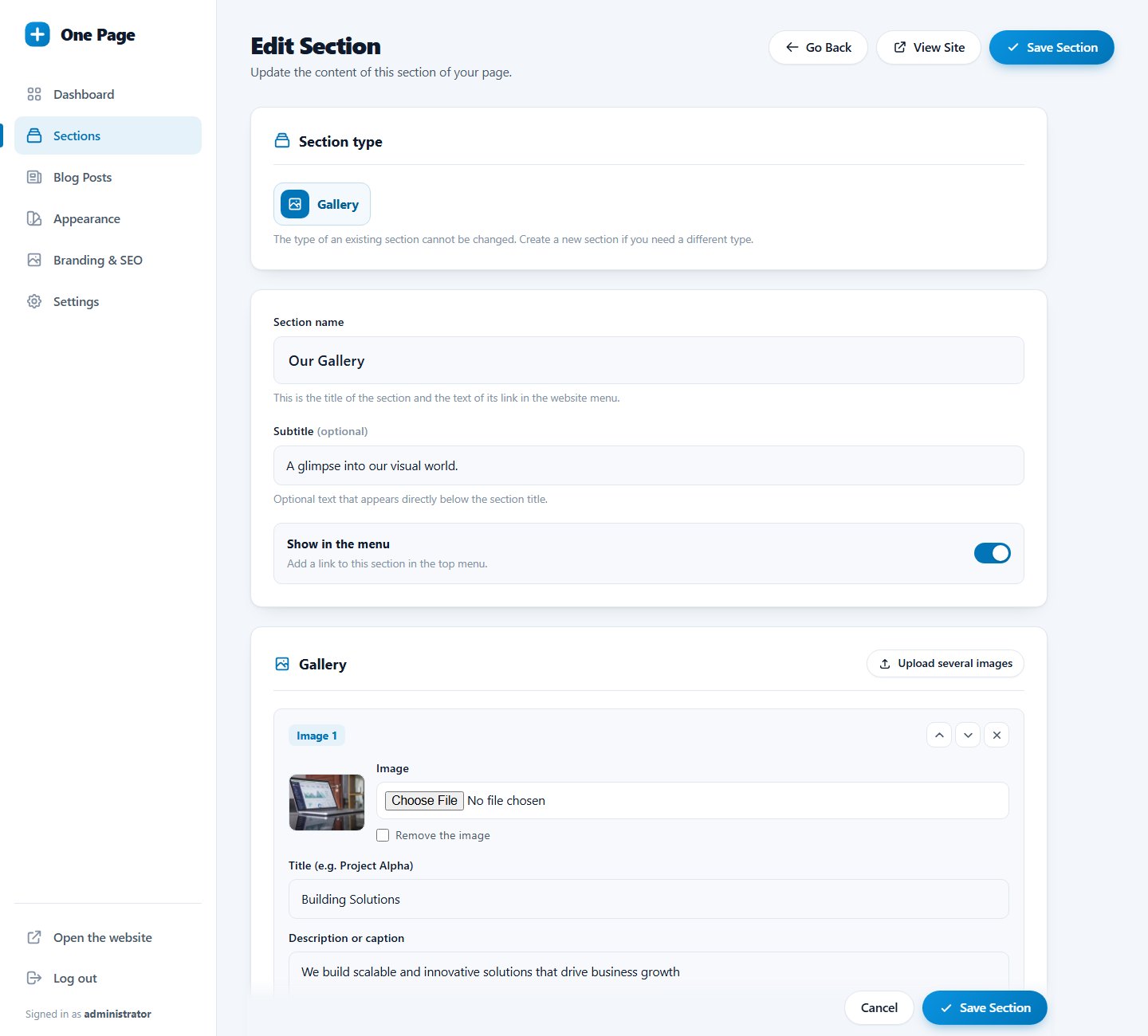
The top of the form
- Section type: chosen when you create the section. Afterwards it is shown as a fixed label.
- Section name: required. Becomes the headline and the menu text.
- Subtitle: optional text below the headline. The label adapts to the type.
- Show in the menu: switch.
Repeatable items
Features, gallery, slider, team, testimonials, pricing and FAQ sections contain a list of items (cards, pictures, plans, questions). For every list:
- Click the Add button at the bottom to add an item.
- Use the up and down arrows on an item to change its order.
- Use the X to remove an item.
- Items that are completely empty are skipped when you save.
Up to 80 items fit in one section.
Images in items
In galleries, sliders and team sections every item has its own picture field with a live preview. Choose a new file to replace the picture, or tick Remove the image. Details: upload and manage images.
Saving
- Click Save Section (top right, or the bar at the bottom of the page).
- A new section returns to the Sections list; an edited section stays open with a green confirmation.
- If something is wrong (for example a missing name) a red message explains it and your input is kept.
Safe content
Text from the rich text editor is cleaned before it is saved: scripts, styles, forms and unsafe links are removed. You cannot accidentally break your page with pasted content.
Large forms can take a moment to save when many pictures are uploaded. Wait for the confirmation before you close the page.
Last updated