Add a Features section
Features turns your strengths into a tidy grid of cards. Perfect for "Why choose us" or "Our services".
What it looks like
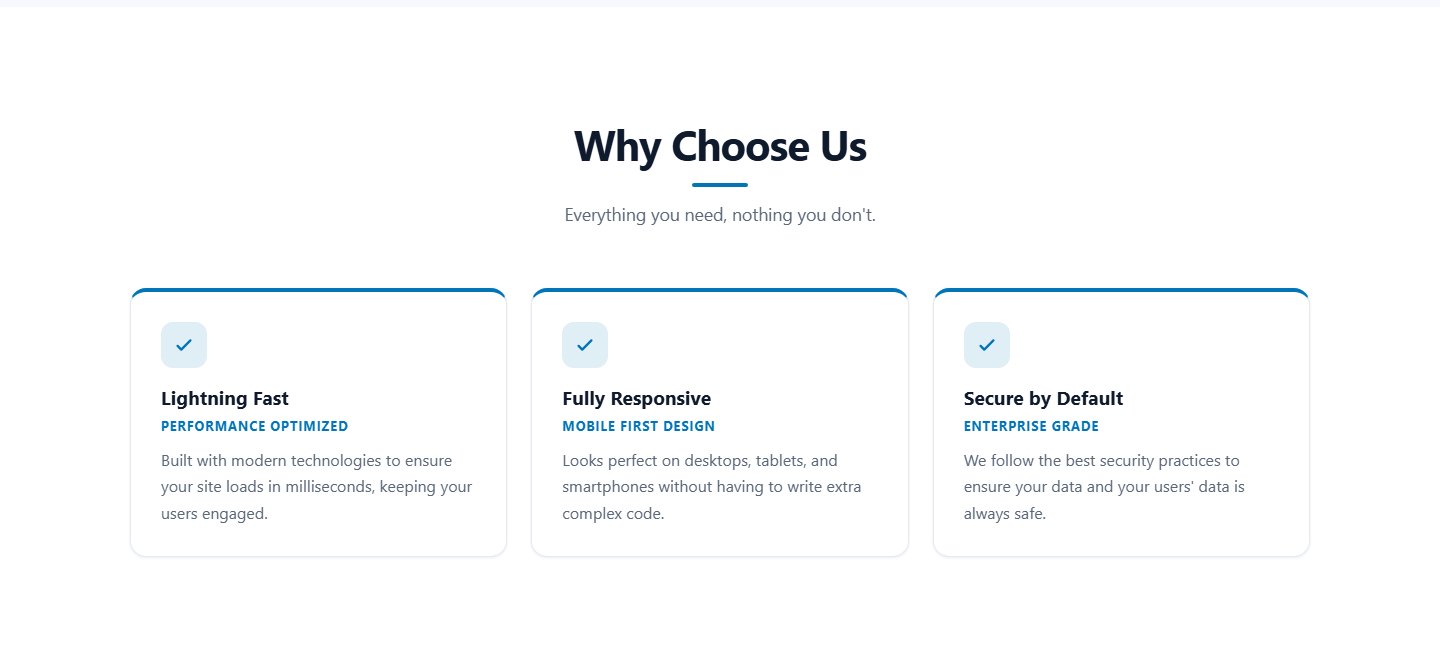
Each feature is a card with a check icon, a title, an optional small coloured subtitle and a description. Three to six features look best. The cards arrange themselves in rows and become one column on phones.
Fields for each feature
| Field | Description |
|---|---|
| Feature title | Short and concrete, for example "Lightning fast". |
| Short subtitle | Optional small line above the description, for example "Performance optimised". |
| Feature description | One to three sentences. |
Step by step
- Add a new section and choose Features.
- Enter the section name (for example "Why Choose Us") and a subtitle.
- Click Add feature for each card and fill in the fields.
- Use the up and down arrows on a card to reorder, and the X to remove it.
- Save the section.
Cards that stay completely empty are ignored when you save.
Start every title with a verb or a clear benefit ("Save time", "Secure by default"). Visitors scan cards quickly.
Last updated