How to install One Page Site
Installation takes only a few minutes: upload the files, make a few folders writable and log in.
Before you start
You need web hosting that meets the system requirements and a way to upload files: FTP, SFTP or your hosting file manager.
Installation steps
- Unzip the package on your computer. You will see the folders
admin,css,data,include,js,pages,templates,thumbnails,uploaded_imagesand the filesindex.php,config.phpand.htaccess. - Upload everything to your web root (often
public_html) to show the website on your main domain. Upload into a subfolder such aspublic_html/siteto show it atyourdomain.com/site.
Do not forget the hidden.htaccessfiles. Enable "show hidden files" in your FTP program. - Check permissions. Make sure
data,uploaded_images,thumbnailsandconfig.phpare writable (see folder permissions). - Open your website in the browser. You should see the sample page that ships with the script.
- Open the admin panel at
yourdomain.com/admin/and log in. - Change the default password immediately on the Settings page.
Default login
| Username | administrator |
|---|---|
| Password | abc123 |
The default password is public knowledge. Anyone who reads this manual knows it, so change it before you put the website online. The dashboard reminds you while the old password format is still in use.
Check that everything works
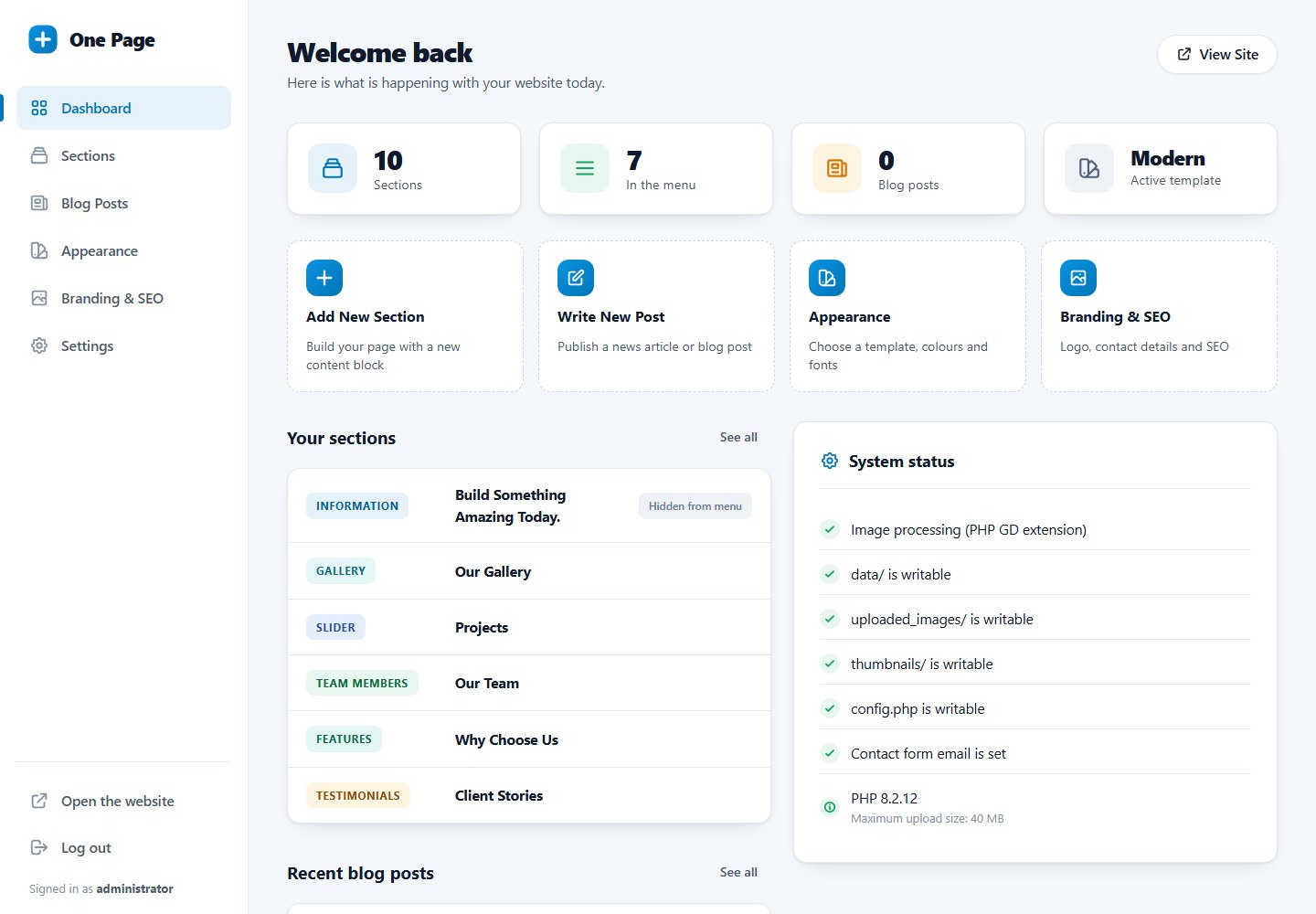
- On the admin dashboard, all items in the System status box should show a green check mark.
- Open Settings and enter the email address that should receive messages from the contact form.
- Click View Site and test the menu and the contact form.
Installing in a subfolder or on a subdomain
The script uses relative links, so it works in any folder or on a subdomain without extra configuration. If you later move it, see upgrade and move your website.
Last updated