Add a pricing table section
Present your packages side by side and gently guide visitors to the plan you want them to choose.
What it looks like
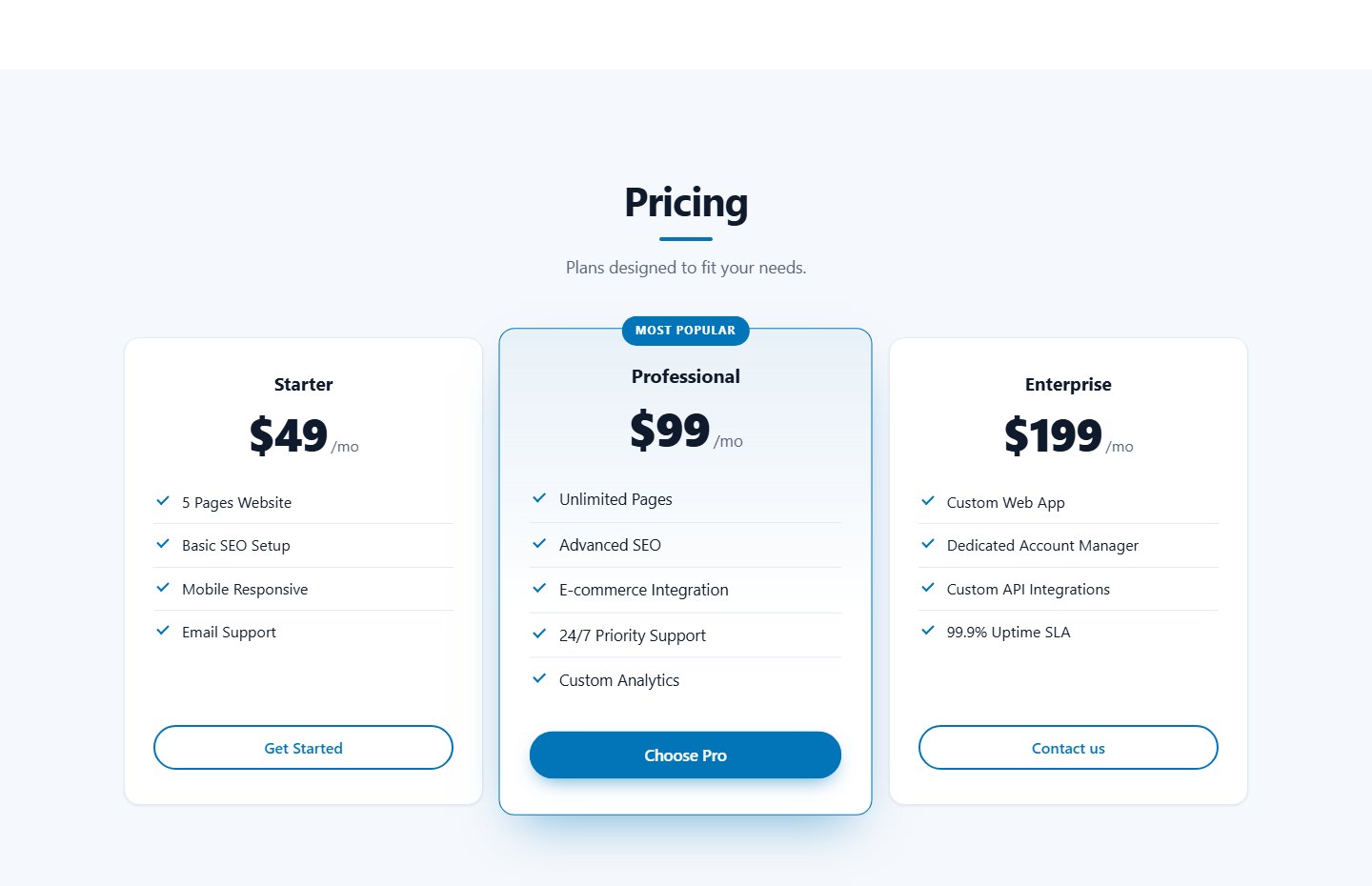
Fields for each plan
| Field | Description |
|---|---|
| Plan name | For example "Professional". |
| Price | Free text such as $49 / month or From €300. Text after the first slash is shown smaller as the billing period. |
| Features | One per line. Each line gets a check mark. |
| Button text | For example "Get started". Defaults to "Select Plan". |
| Button link | A web address, mailto: link or #contact. |
| Highlight as the most popular plan | Adds a "Most popular" badge and a stronger frame. |
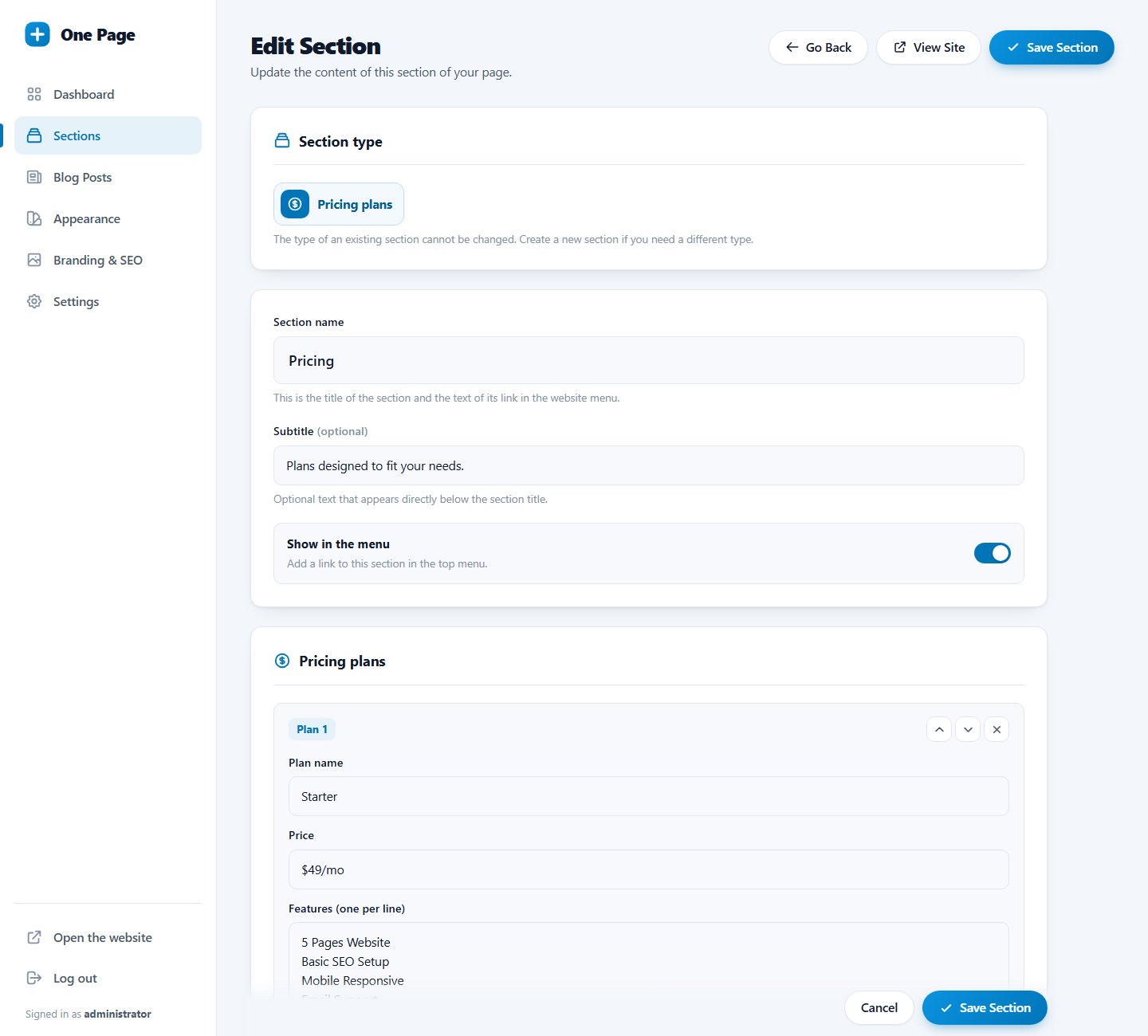
Step by step
- Add a section of type Pricing plans.
- Click Add pricing plan for each package.
- Fill in the fields and tick the highlight box for one plan only.
- Save.
Three plans are the sweet spot. Put the plan you want to sell most in the middle and highlight it.
Last updated