Admin panel overview
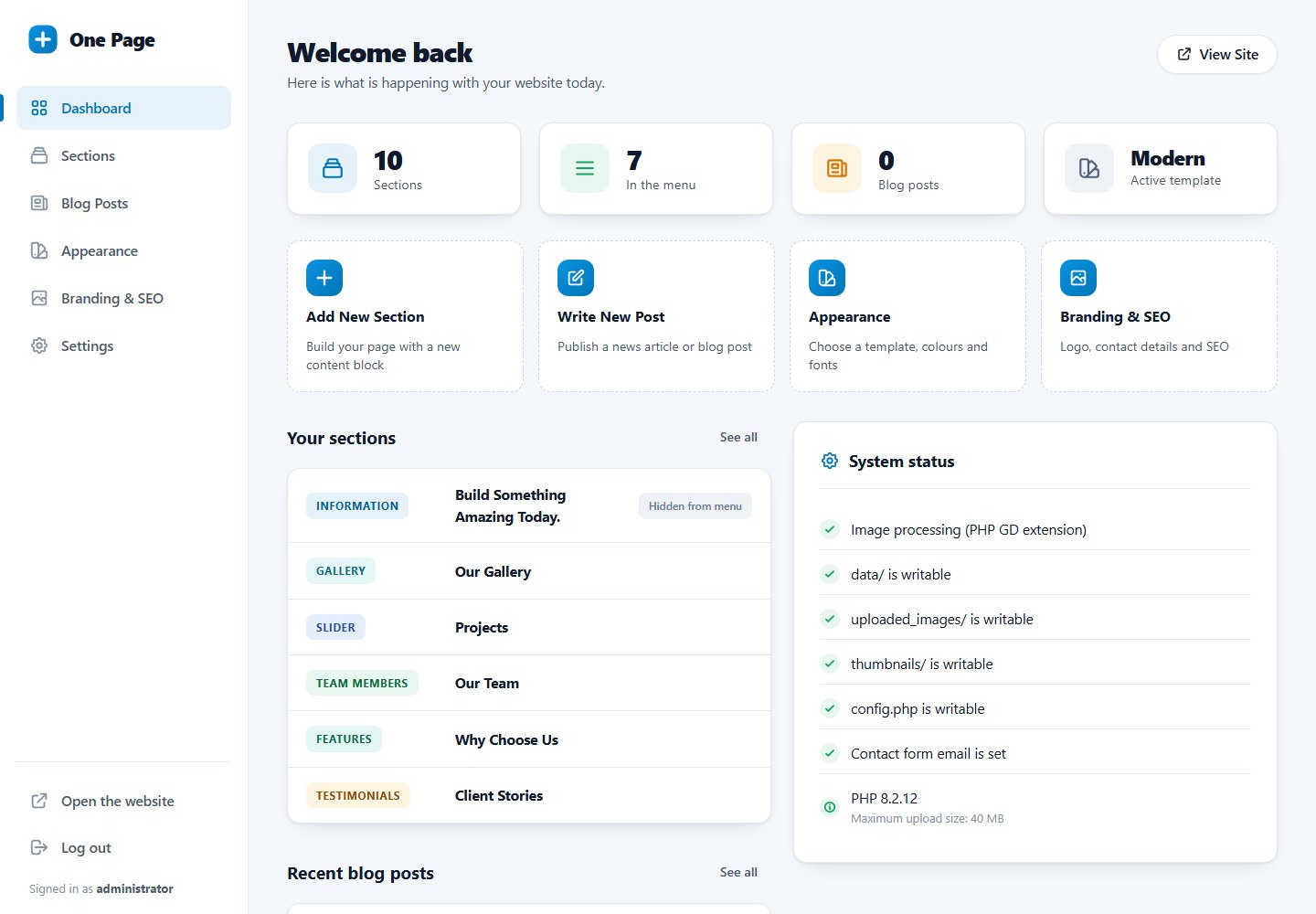
The admin panel is where you manage everything. The menu on the left has six pages.
The left menu
| Menu item | What you do there | Guide |
|---|---|---|
| Dashboard | See statistics, jump to common tasks, check system health. | Dashboard |
| Sections | Add, edit, reorder, hide and delete the sections of your page. | Manage sections |
| Blog Posts | Publish and edit news articles. | Blog posts |
| Appearance | Choose the template, accent colour, font and text size. | Appearance |
| Branding & SEO | Logo, site name, contact details, search engine and social media data. | Branding |
| Settings | Contact email, time zone, image options, blog switch, SEO URLs and your administrator account. | Settings |
At the bottom of the menu you find Open the website (opens your website in a new tab), Log out and the name of the signed-in user.
Working with the panel
- Every change is saved with the blue Save button at the top right or at the bottom of the page, and is visible on your website immediately.
- A green message confirms that your changes were saved; a red message explains a problem.
- Dangerous actions such as deleting a section ask for confirmation first.
- The panel works on tablets and phones. Tap the menu icon to open the left menu.
- If you are inactive for 2 hours you are logged out. See log in and first steps.
Last updated