Payment settings
Payments let you earn money from car owners who post on your platform. All settings are on one page with four tabs.
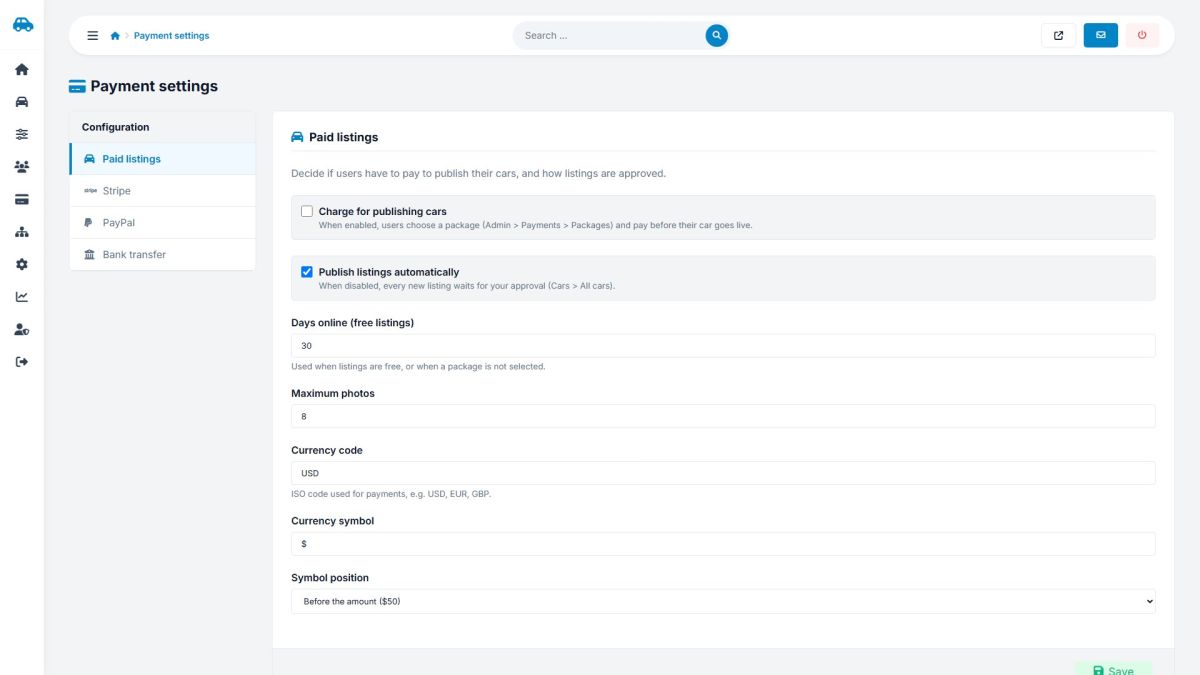
Tab: Paid listings
| Setting | What it does |
|---|---|
| Charge for publishing cars | On: users choose a package and pay before the car goes live. Off: publishing is free. |
| Publish listings automatically | Off: every new listing waits for your approval in Managing cars. |
| Days online (free listings) | How long a free listing stays online. |
| Maximum photos | Photos allowed when no package is chosen. |
| Currency code | ISO code used by Stripe and PayPal: USD, EUR, GBP ... |
| Currency symbol and position | How prices look on the website: $50 or 50 €. |
Tab: Stripe
- In your Stripe dashboard open Developers → API keys and copy the secret key (
sk_...). - Paste it here, set the mode and tick Accept payments with Stripe.
- Recommended: add a webhook in Developers → Webhooks pointing to
https://your-site.com/include/stripe_webhook.phpwith the eventcheckout.session.completed, and paste its signing secret (whsec_...) here.
Customers pay on the hosted Stripe Checkout page, so card numbers never reach your server. The return page and the webhook both verify the payment with Stripe.
Tab: PayPal
- Create a REST app on developer.paypal.com and copy the Client ID and Secret.
- Choose Sandbox for tests or Live, paste the keys and tick Accept payments with PayPal.
The script uses the PayPal Orders v2 API. When the customer returns, the order is captured and the amount and currency are checked before the listing is published.
Tab: Bank transfer
Enter the account holder, bank name, IBAN or account number and instructions. They are displayed to the user after choosing this method. The payment stays pending until you mark it as paid (Packages and transactions).
Saved secret keys are never shown again. Leave a key field empty to keep the stored value. Test with Stripe test keys or PayPal Sandbox before switching to live.
Use HTTPS on your website when you accept payments.
Last updated