Portal Payments: Stripe and PayPal Setup
This is how your portal makes money. Choose a charge mode, connect a payment method and set the prices.
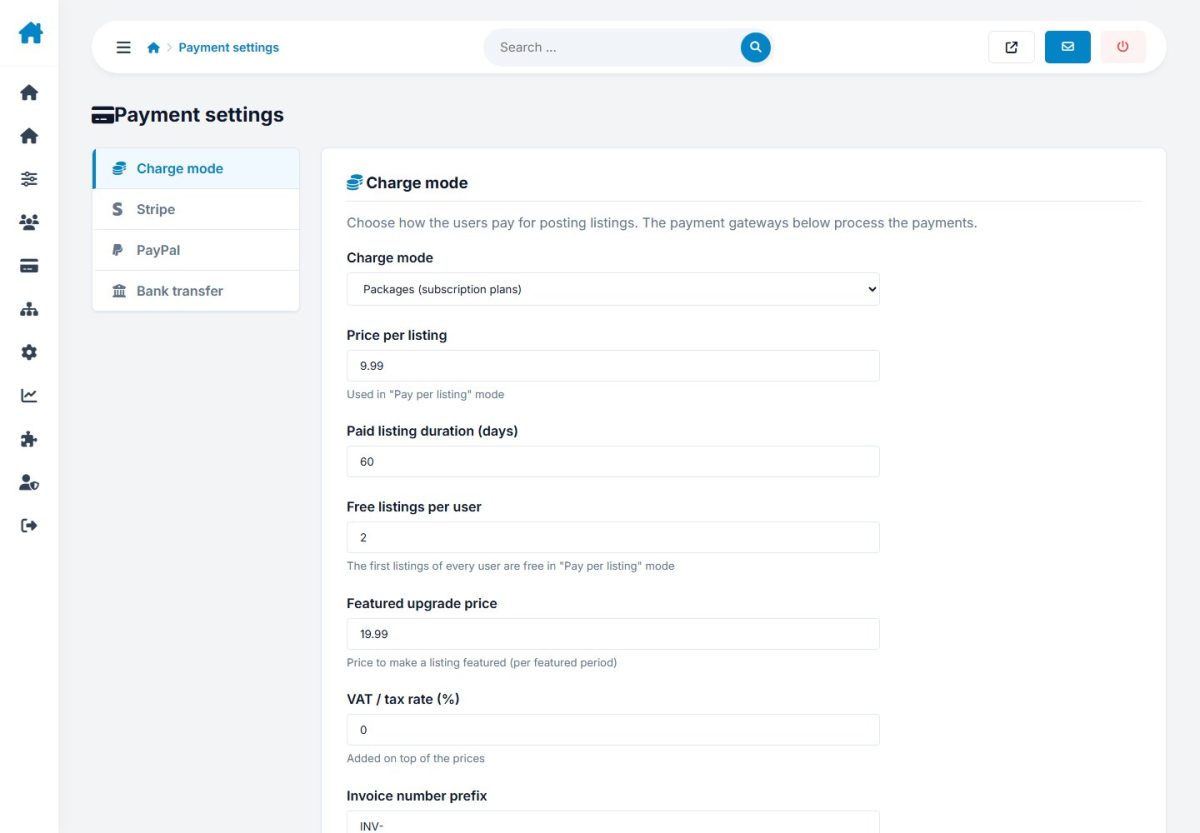
Charge mode
| Mode | Behavior |
|---|---|
free | Listings are free |
per_listing | Each listing costs listing_price; the first free_listings are free |
packages | Advertisers buy credit packages |
Other settings: listing_duration_days, featured_price, vat_rate (percent) and invoice_prefix.
Stripe
- Enable Stripe and paste the publishable and secret keys from your Stripe dashboard (use test keys first).
- In Stripe add a webhook endpoint
https://your-site.com/payments/stripe_webhook.phpfor the eventscheckout.session.completedandcheckout.session.async_payment_succeeded. - Paste the webhook signing secret in the settings.
- Test with card
4242 4242 4242 4242, any future date and any CVC.
PayPal
- Create REST API credentials in PayPal Developer and paste client ID and secret.
- Choose sandbox or live.
- Optionally add a webhook to
payments/paypal_webhook.phpforPAYMENT.CAPTURE.COMPLETED.
Bank transfer
Enable it and type the bank instructions that are shown at checkout. The order stays pending until you confirm it in Pending payments.
Orders
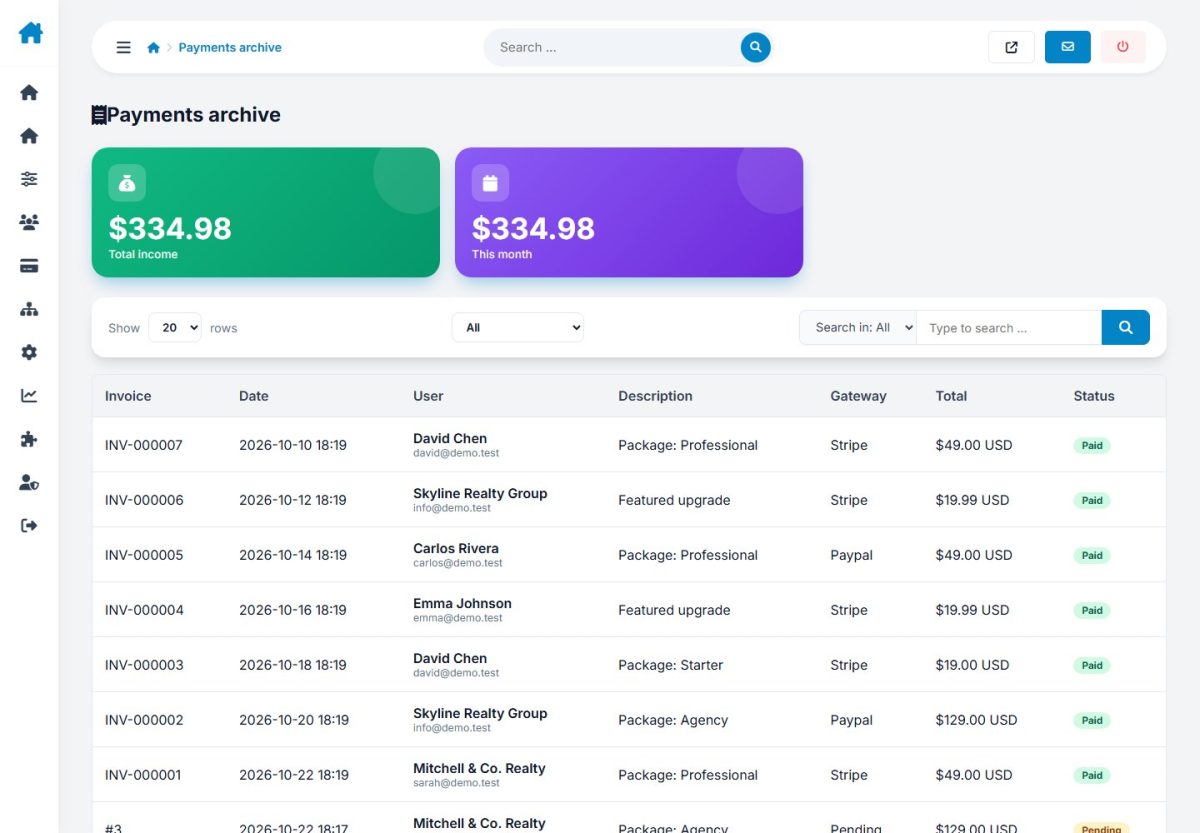
Pending payments shows orders awaiting confirmation (mark as paid or cancel). Payments archive keeps the completed history.
Packages
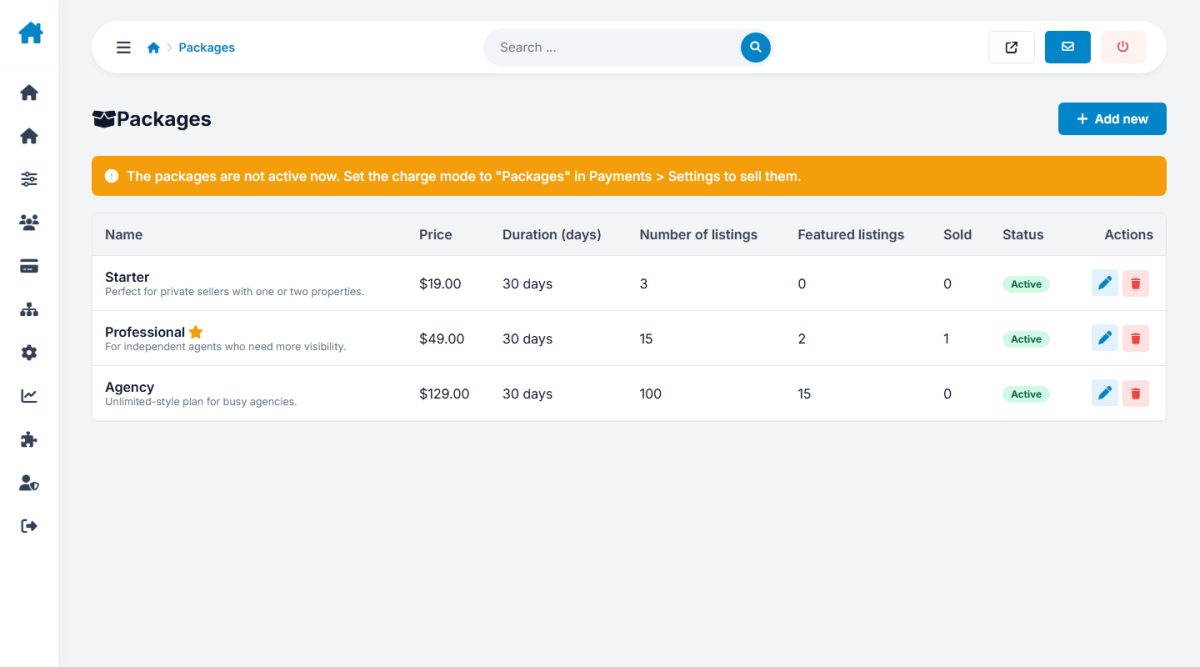
Create packages with a name, price, number of listings, duration and featured credits. Purchased packages lists what users have bought and their remaining credits.
Always test the full payment cycle with test keys before switching to live keys.
Last updated