Connect Stripe and PayPal payments
Online payments are optional, but they are what turns visitors into confirmed bookings and what lets you earn commission.
Online payments are configured in Payments → Payment settings. The page has four tabs: Charging model, Currency, Stripe and PayPal. The script talks to the current REST APIs of both providers, so card data and PayPal passwords never reach your server.
Currency
On the Currency tab set:
| Field | Example | Explanation |
|---|---|---|
| Currency code | EUR | The ISO code used by Stripe and PayPal. All prices of the marketplace are in this currency. |
| Currency symbol | € | Shown in prices. |
| Symbol position | Before / after | €120.00 or 120.00 €. |
| Decimals | 2 | Use 0 for currencies without cents. |
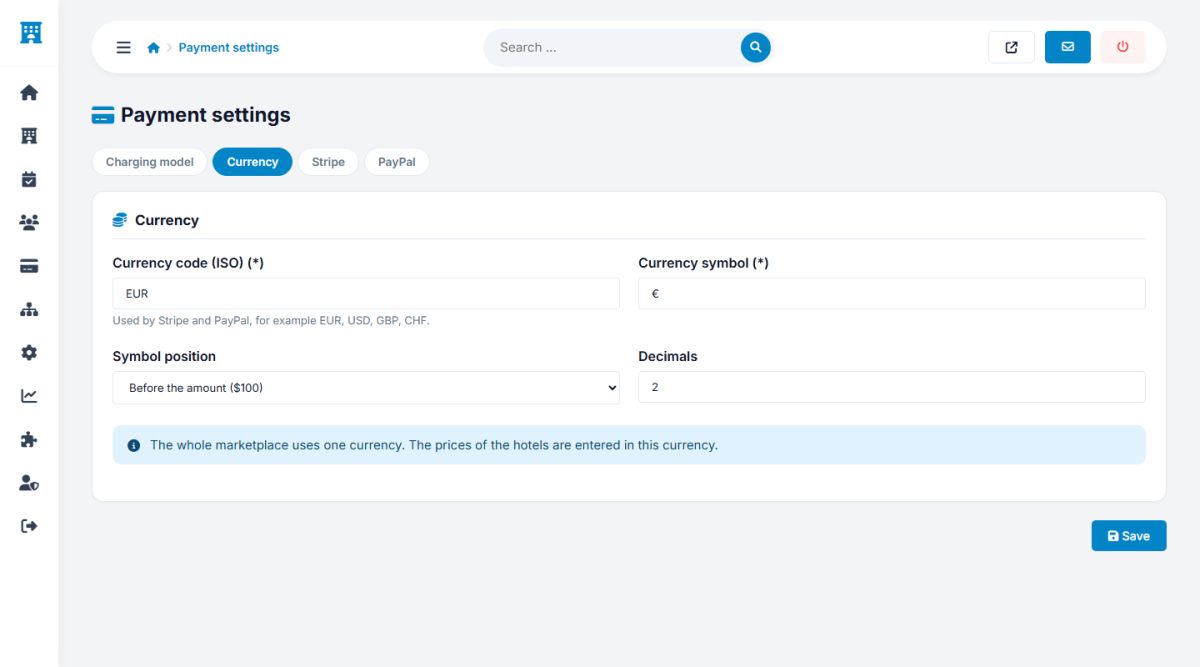
Choose the currency before the first booking. Changing it later does not convert existing prices and bookings.
Stripe (cards)
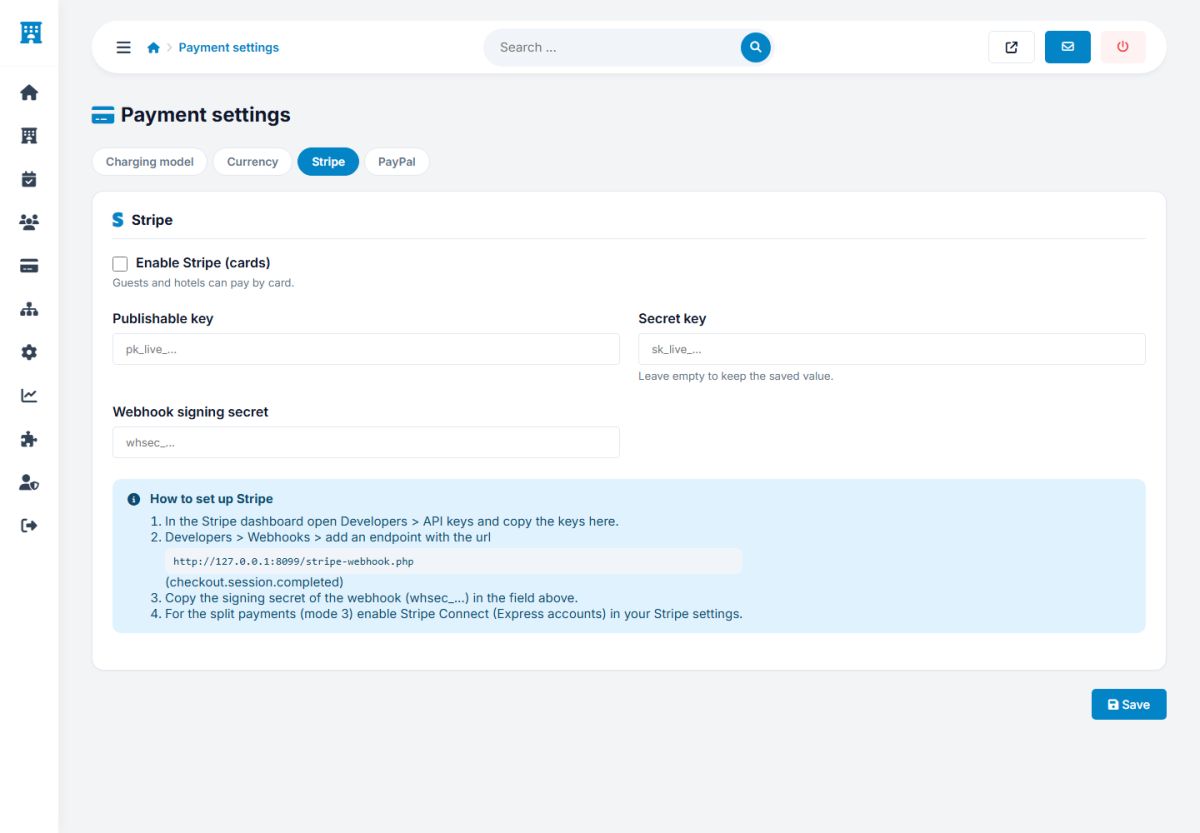
- Create or open your account at stripe.com. Start in test mode.
- In the Stripe dashboard open Developers → API keys and copy the publishable key (
pk_test_...) and the secret key (sk_test_...). - Paste them in the Stripe tab and tick Enable Stripe.
- Open Developers → Webhooks → Add endpoint. As the address enter the one shown on the page,
https://your-site.com/stripe-webhook.php, and select the eventcheckout.session.completed. - Copy the signing secret of the webhook (
whsec_...) in the field Webhook signing secret. - Press Save, then Test the connection. A green message with the name of your Stripe account confirms the key.
Guests pay on a secure Stripe Checkout page and come back to your booking page. The webhook confirms the payment even when the guest closes the browser before returning, and the script verifies the signature of every call. Secret keys are stored but never shown again; the fields show only a mask.
To test a payment, book with the card number 4242 4242 4242 4242, any future date and any security code. When everything works, replace the test keys with the live keys (pk_live_, sk_live_) and create a live webhook.
Stripe Connect is needed only for the model Split at payment: enable Connect in your Stripe account; hotels connect their own account from their panel.
PayPal
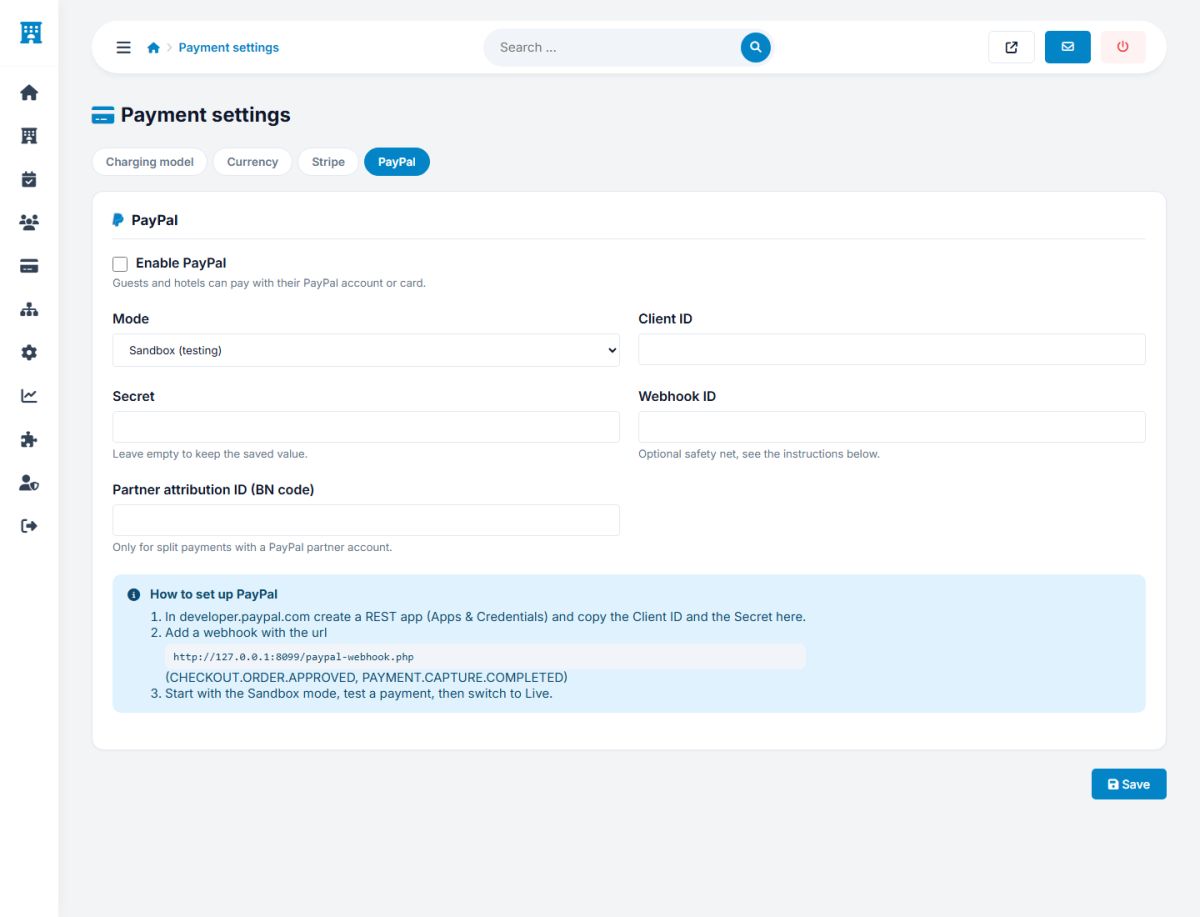
- Log in at developer.paypal.com and open Apps and credentials. Choose Sandbox first.
- Create a REST app and copy the Client ID and the Secret.
- In the PayPal tab choose the Mode (Sandbox or Live), paste the Client ID and the Secret, and tick Enable PayPal.
- In the app add a webhook with the address
https://your-site.com/paypal-webhook.phpand the eventsCHECKOUT.ORDER.APPROVEDandPAYMENT.CAPTURE.COMPLETED. - Copy the Webhook ID in the field of the same name.
- Press Save and Test the connection.
The field BN code is only for partner accounts and can stay empty. The PayPal split of the model 3 needs a PayPal partner account; with a normal business account use the models 1 or 2.
Checklist before going live
- The site runs on HTTPS, because the providers refuse webhook addresses without it.
- Live keys, live webhook and live PayPal mode are set.
- You made a real booking with a small amount and refunded it (cancel the booking with a full refund).
- The e-mails of confirmation arrive (E-mail settings).
- Payments appear in Payments → Transactions.
Refunds are sent automatically to Stripe or PayPal when a booking is cancelled according to its cancellation policy, or when the property cancels. If a refund cannot be made automatically, the guest and the owner are told and the problem is recorded.
Last updated