Availability calendar: seasonal prices and closed days
The calendar is the quickest way to run revenue management: click days, choose an action, apply.
Open Rooms and prices → Availability and prices. Choose the room type with the tabs at the top and use the month arrows to move through the year.
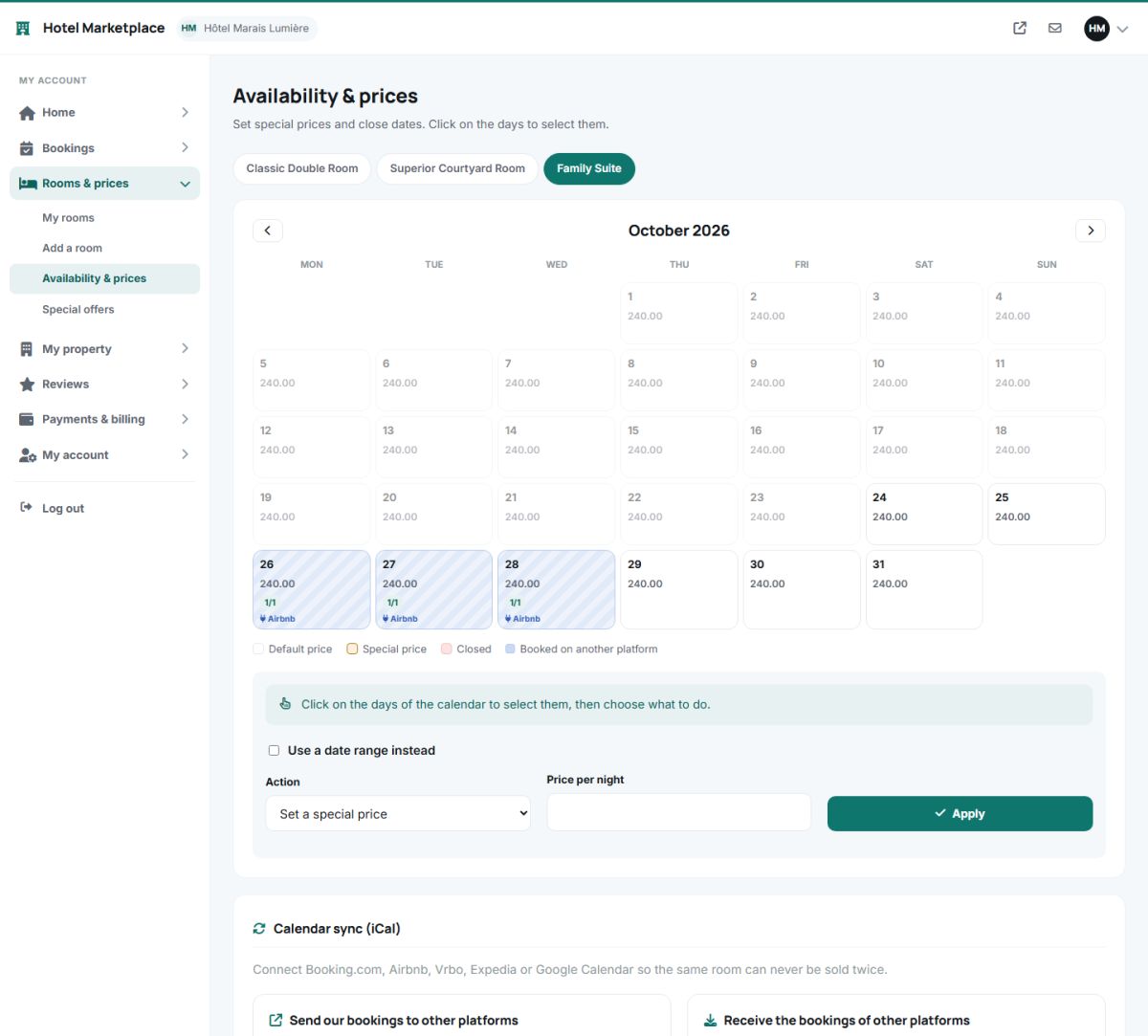
Reading the calendar
| Look | Meaning |
|---|---|
| White day with a price | Open at the default price. |
| Yellow day | A special price is set for this date. |
| Red striped day, "Closed" | The room cannot be booked on this date. |
| Blue striped day with a plug icon | Blocked because it is booked on another platform (see iCal sync). |
| Small badge "2/6" | Two of the six rooms are already booked that night. |
Change prices or close dates
- Click the days you want to change. They get a frame, and a message counts them. Click a day again to deselect it.
- Choose the Action:
- Set a special price: enter the price per night.
- Close the dates: the room cannot be booked on those nights.
- Open the dates: removes a closing.
- Reset to the default price: removes the special price and the closing.
- Press Apply.
Past days cannot be selected.
Use a date range
Tick Use a date range instead to apply an action to a long period without clicking each day. Enter the first and the last date and choose the weekdays that are affected. For example, set a higher price only for Fridays and Saturdays from June to September.
What guests see
Special prices are used in the search results, on the hotel page and in the checkout, and they replace the default price for the nights concerned. Closed days make the room unavailable and the guest is told that it is closed on some of the chosen dates.
Close the dates of renovations or private use here, and use a special offer when you only want to give a discount. Closed days are also exported to Booking.com and Airbnb by the iCal sync.
Last updated