Create your first poll
Quick start guide: create a poll from a template, preview it live, publish it and embed it on your website with PHPPoll. Follow the steps and be online in minutes.
This quick start shows the shortest path from an empty installation to a live poll on your website.
Step 1: Start from a template
On a fresh installation the dashboard shows template cards: Yes / No, Multiple choice, Star rating, Net Promoter Score, Image poll and Blank poll. Click one to open the poll editor with ready-made questions and options. You can also click Create poll at any time.
Step 2: Edit the question and options
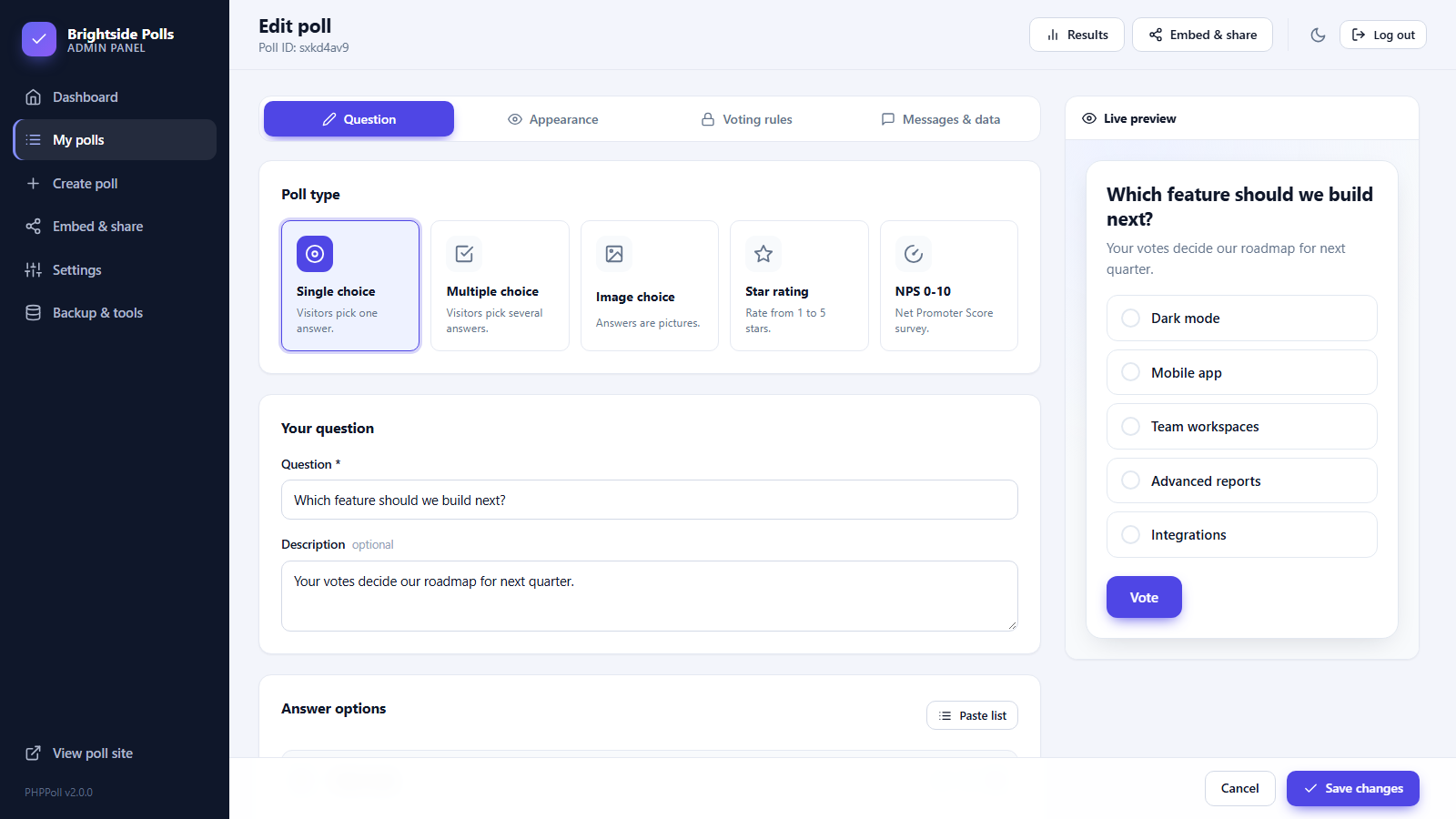
- Pick the poll type (single choice, multiple choice, image, rating or NPS).
- Type your question and an optional description.
- Enter the answer options. Use Add option for more lines or Paste list to paste many options at once.
Step 3: Choose a look
Open the Appearance tab to choose a light, dark or automatic theme, your accent color, corner roundness and the chart style for the results. See Poll appearance settings.
Step 4: Set the rules
The Voting rules tab controls the status, schedule, vote limits and who can see the results. The defaults are safe: one vote per visitor, results shown after voting. See Voting rules.
Step 5: Save and publish
Click Create poll. The poll is Active straight away and the editor shows its ID, for example k4x9p2ab.
Step 6: Put the poll on your site
Click Embed & share on the poll. Copy the direct link, or copy the JavaScript snippet and paste it into any page. Details: Share and embed polls.
Use the Duplicate action in the polls list to reuse a finished poll as a starting point. Copies are saved as drafts. See Manage your polls.
Step 7: Watch the results
Open My polls → Results to see charts and statistics as the votes come in. See The results page.
Last updated