The results page
Read your poll results in the PHPPoll admin: total votes, leading answer, chart switcher, status, last vote, actions menu to close, reset, print or delete a poll.
Every poll has a results page in the admin panel. Open it from My polls by clicking a poll title or the Results icon.
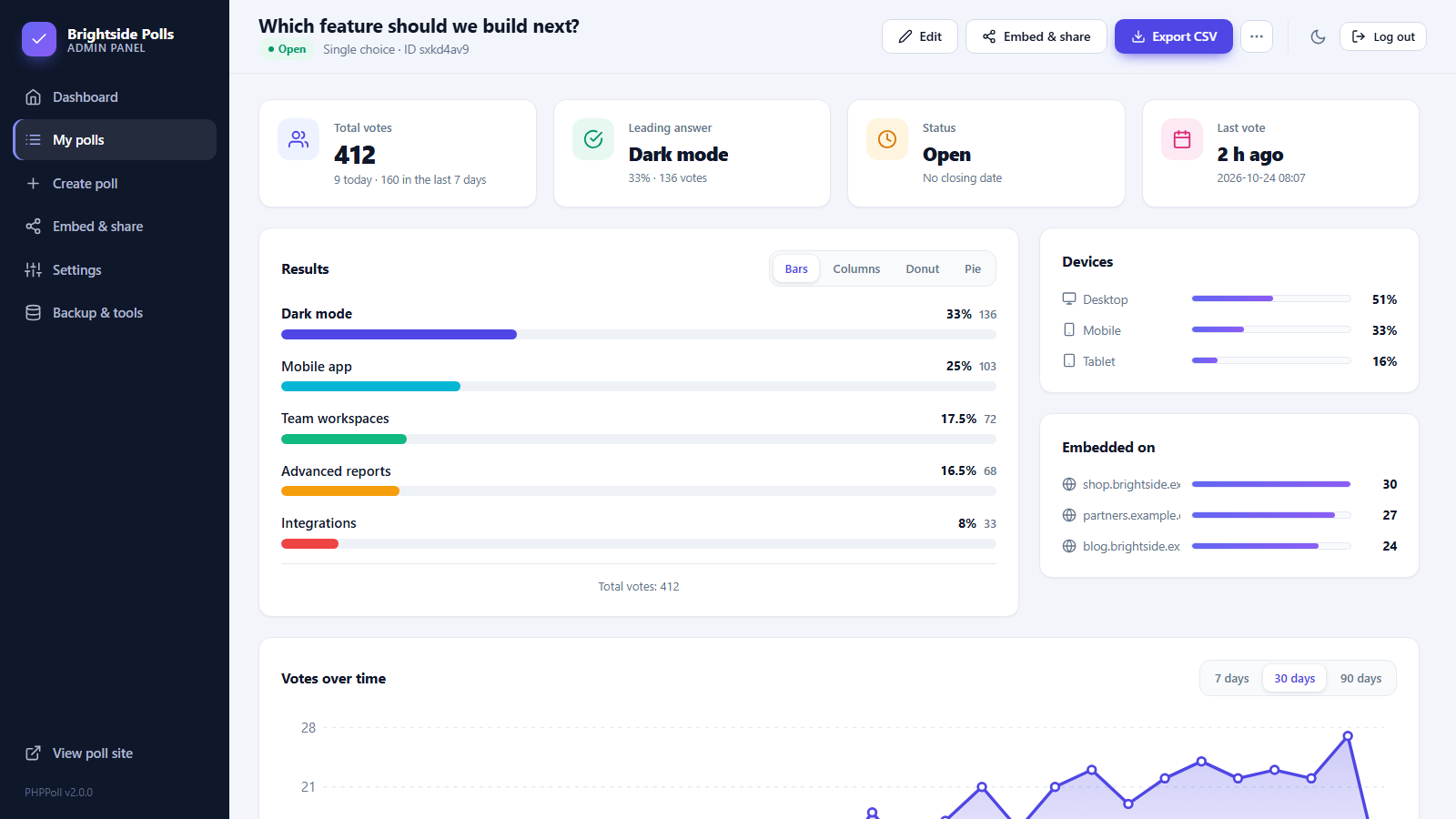
Header and actions
The header shows the question, the status badge, the poll type and ID. The buttons on the right:
- Edit and Embed & share – jump to the editor or the sharing tools.
- Export CSV – downloads all votes. See Export poll votes to CSV.
- … menu: open the public page, Print, close or reopen the poll, Reset all votes and Delete poll.
Statistic cards
| Card | Shows |
|---|---|
| Total votes | All votes, plus how many arrived today and in the last 7 days. |
| Leading answer / Average rating / NPS | The current winner with its percentage, the average star rating, or the Net Promoter Score, depending on the poll type. |
| Status | Open, closed, scheduled… with the closing date or votes remaining. |
| Last vote | How long ago the last vote arrived and the exact time. |
Results chart
The main card shows the results in the same style that visitors see. Use the buttons Bars / Columns / Donut / Pie to try a different chart. This is a preview for you only; to change the style for visitors use the Appearance tab. See Chart types for poll results.
More cards
Below the chart you find devices, embed sources, a timeline, other answers, comments and the table of individual votes. See Poll statistics and individual votes.
Reset or delete
- Reset all votes removes every vote but keeps the poll and its settings. Useful after testing.
- Delete poll removes the poll together with its votes.
Both actions ask for confirmation and cannot be undone. Export or back up first. See Backup, restore and moving to a new server.
Last updated