User manual · version 2.0
Event Portal user manual
Step-by-step guides for installing, configuring and using every part of your event listing and ticketing website.
1Getting started
Introduction to Event PortalEvent Portal is a PHP event listing and ticketing script with AI search, Stripe and PayPal payments, organizer and attendee panels. See what it can do.
How to Install Event PortalInstall the Event Portal PHP script in minutes: requirements, uploading files, database setup with the web installer and first login to the admin panel.
The Configuration File (config.php)Explains every option in config.php: database access, table prefix, domain name, debug mode, cron key and the cron job that sends alerts and reminders.
Folder Structure and CustomizationUnderstand the Event Portal file structure: extensions, templates, languages, admin modules and CSS files, and how to customize pages with plain PHP.
2The public website
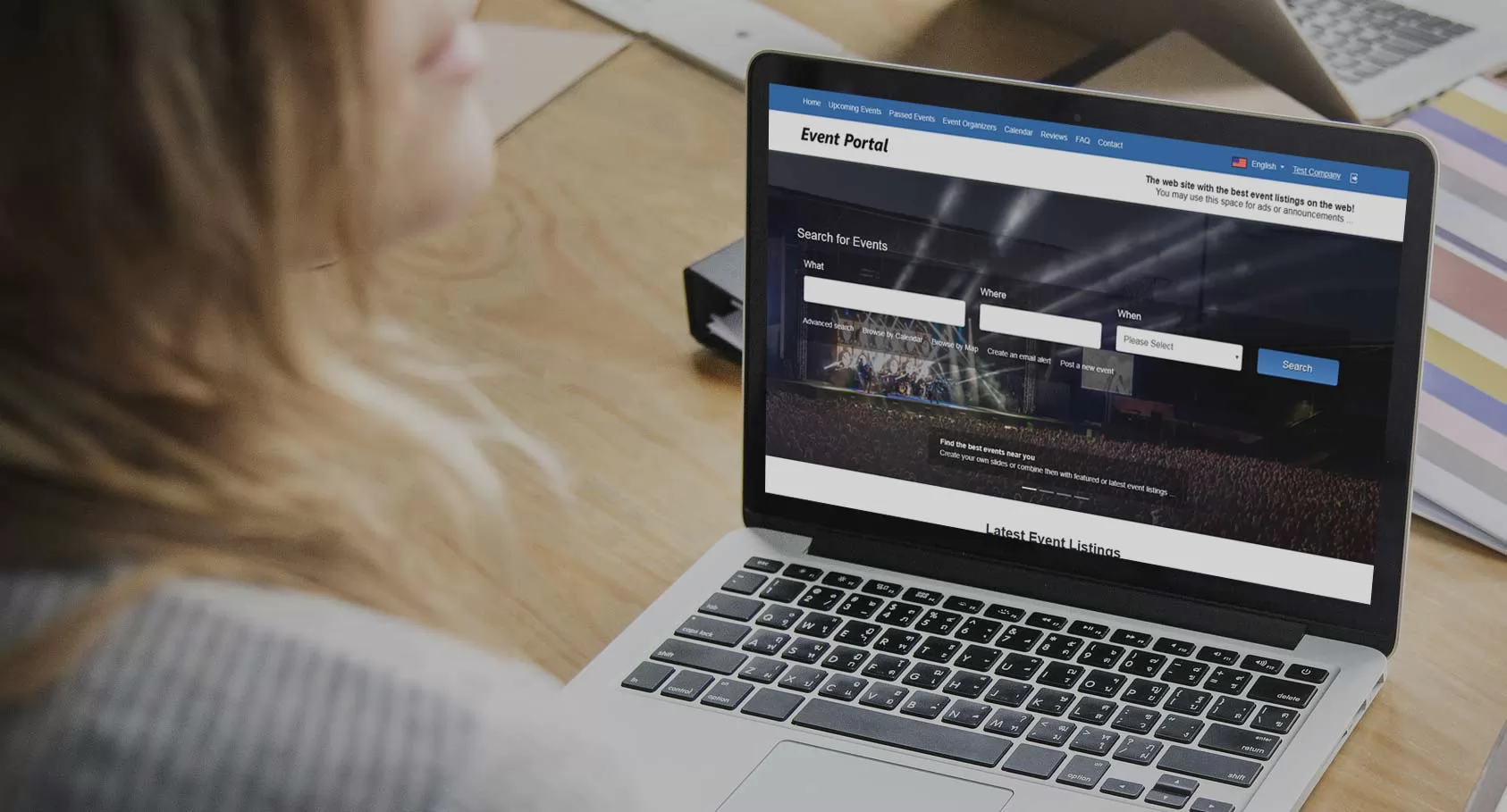
The Home PageTour the Event Portal home page: hero search, quick date filters, category tiles, featured events, weekend picks and how each block is filled automatically.
AI Event Search in Plain LanguageVisitors type a sentence like "free jazz concerts in New York this weekend" and Event Portal turns it into filters with Groq, DeepSeek or ChatGPT.
Searching and Filtering EventsHow the Event Portal search page works: keywords, category, location, date ranges, free or paid, online events, sorting, grid and list view.
The Event PageEverything on an Event Portal event page: ticket box, description, gallery, video, map and directions, organizer questions, reviews and sharing.
Buying Tickets: Checkout and PaymentHow ticket buying works in Event Portal: choose tickets, apply a coupon, pay by card, PayPal or bank transfer and receive QR code tickets by e-mail.
Calendar, Categories and LocationsBrowse events by month in the calendar, by category and by city. Learn how these pages work and how to add them to your menu.
Organizer Profiles and FollowingEvery organizer gets a public profile page with logo, bio, verified badge and all upcoming events. Attendees can follow organizers and get notified.
Registration, Login and Password ResetHow visitors register as attendees or organizers, activate their account by e-mail, log in securely and reset a forgotten password in Event Portal.
3Attendee panel
Attendee Dashboard and My TicketsThe Event Portal attendee panel shows upcoming tickets with QR codes, past orders, printable tickets, add-to-calendar links and personal recommendations.
Saved Events and Followed OrganizersAttendees save favorite events with the heart button and follow organizers to get notified about new events. Learn where to manage both lists.
E-mail Alerts for New EventsAttendees create e-mail alerts by keyword, category and location and receive new matching events automatically. Setup guide for Event Portal.
Attendee Profile and PasswordAttendees edit their name, phone, city, interests and newsletter choice, change the password and switch the panel language in Event Portal.
4Organizer panel
Organizer Panel: Getting StartedStart selling tickets with the Event Portal organizer panel: register, tour the dashboard with sales and visit charts, and learn the menu.
How to Create an EventCreate an event listing step by step: details, date and place, online events, map coordinates, images, gallery, video and every field of the event form.
AI Writing Assistant for Event DescriptionsUse the built-in AI assistant to write event descriptions, short teasers, tags, title ideas and social media posts in seconds. How it works and tips.
Ticket Types, Quantities and PricingSet up paid, free and external ticketing in Event Portal: several ticket types per event, quantities, per-order limits and how stock is handled.
Publishing Events: Packages and ApprovalHow publishing works in Event Portal: draft, package choice and payment, moderation by the administrator, event statuses, duplicating and deleting events.
Promote and Feature Your EventBuy a featured upgrade to show your event in the featured area of the Event Portal home page and reach more visitors. How it works and how to pay.
Orders, Sales and CSV ExportSee every paid order for your events, filter by event, export to CSV and review your payments for listings and promotions in the organizer panel.
Guest List and Door Check-inValidate QR code tickets at the entrance with the Event Portal check-in screen, use the guest list with one-click check-in and export attendees to CSV.
Organizer Profile, Logo and PasswordEdit your organizer profile, upload a logo, add social links and change your password in the Event Portal organizer panel.
5Administration panel
Administration Panel OverviewTour the Event Portal administration panel: dashboard, menu structure, messages, login logs and a checklist of the first things to configure.
Managing Events and ReviewsApprove or reject events, feature them, edit or delete listings, add events for any organizer and moderate attendee reviews in the Event Portal admin.
Orders, Tickets and RefundsHandle ticket orders in the Event Portal admin: confirm bank transfers, cancel or refund orders, restore stock and check in or void individual tickets.
Managing Organizers, Attendees and NewsletterAdd, edit, activate and verify organizers and attendees, and send a newsletter to your subscribers from the Event Portal administration panel.
Payment Settings: Stripe, PayPal and Bank TransferConnect Stripe Checkout and PayPal to Event Portal, enable bank transfers, set currency, service fees and charge organizers for listings step by step.
Listing Packages and Discount CouponsCreate paid listing packages with duration and featured days, and discount coupons for tickets and listings in the Event Portal admin panel.
Pages, Menus, News, FAQ and BannersManage website content in Event Portal: create pages with translations, control the main and footer menus, publish news, edit the FAQ and place banners.
Logo, Colors and Home Page HeadlineBrand your event portal without code: upload a logo and favicon, set the website name, choose three colors and write the home page headline per language.
Languages and Translating the WebsiteMake your event portal multilingual: add a language, translate every interface text in the built-in editor and translate pages, categories and the admin panel.
General Settings and E-mail (SMTP)Configure Event Portal: company details, time zone, maintenance mode, events and registration options, and SMTP e-mail so tickets and alerts are delivered.
AI Settings: Groq, DeepSeek and ChatGPTConnect an AI provider to Event Portal: choose Groq, DeepSeek or ChatGPT, paste the API key, test the connection and control which AI features are active.
SEO, Analytics Tracking and Social MediaEvent Portal SEO features explained: meta tags, structured event data and sitemap, plus how to add Google Analytics, Facebook Pixel and social links.
Editing Categories and LocationsEdit the event categories and the list of countries and cities in Event Portal. The text file format, numbering rules and translating categories.
Statistics and ReportsBuilt-in Event Portal analytics: visits, page views, top pages, referrers, devices and browsers, plus best events by views, tickets and revenue.
Administrators, Groups and PermissionsAdd administrators and moderators to Event Portal, organize them in groups and decide exactly which admin pages each group is allowed to open.
Backups, Maintenance and UpdatesProtect your event portal: download a database backup, copy uploaded images, use maintenance mode, schedule the cron job and update the script safely.
6Help
Frequently Asked QuestionsAnswers to common questions about Event Portal: hosting, payments, payouts, languages, AI, design changes, refunds, e-mail and what is and is not included.
Troubleshooting Common ProblemsFix common Event Portal problems: blank pages, database errors, missing e-mails, image uploads, event URLs, Stripe, PayPal, AI errors and login issues.