Buying Tickets: Checkout and Payment
Buying a ticket is quick and does not require an account. After payment the buyer receives tickets with QR codes immediately on screen and by e-mail.
The buying steps
- Choose tickets. On the event page set the quantity of each ticket type and press Buy tickets.
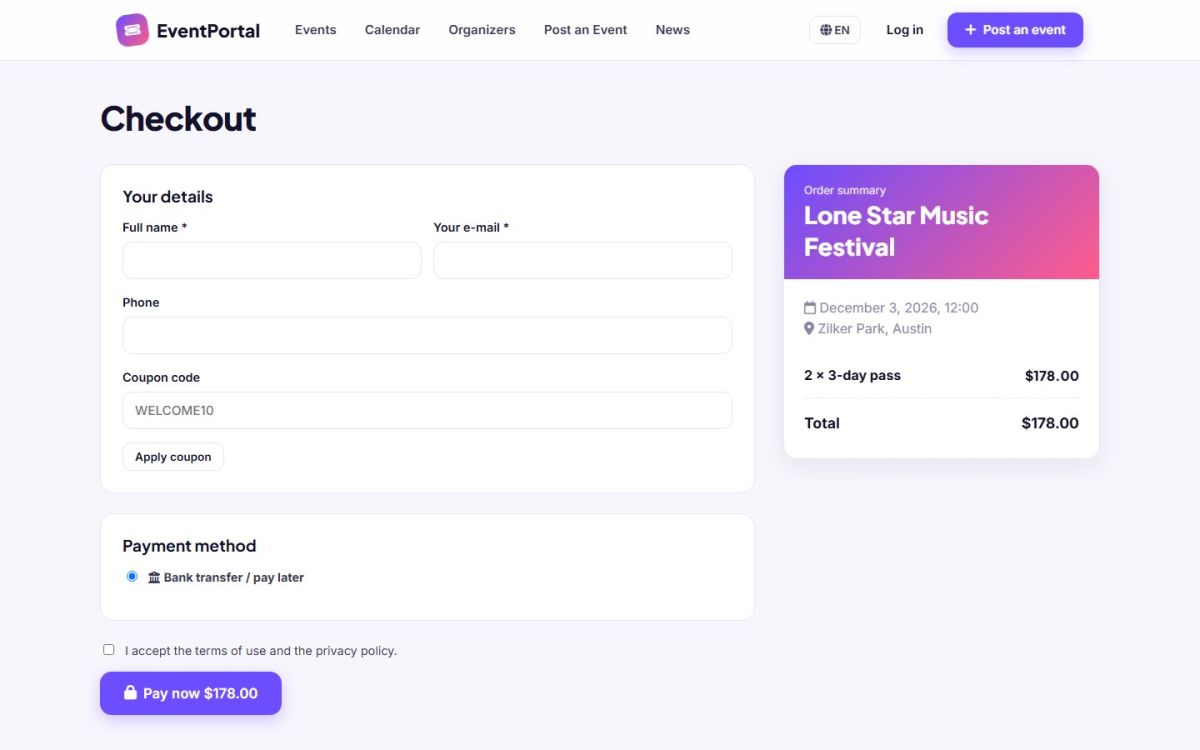
- Enter details. The checkout asks for name, e-mail and optionally phone. Logged in attendees have these filled in.
- Apply a coupon (optional). Enter the code and press Apply coupon. The summary shows the discount.
- Choose how to pay. Credit or debit card (Stripe), PayPal or bank transfer, depending on what the administrator enabled.
- Accept the terms and press Pay now.
After payment
- With card or PayPal the buyer is sent to the secure payment page and returns to the order confirmation, where the tickets with QR codes are shown. The same tickets are e-mailed.
- For free tickets there is no payment step. The tickets are issued at once.
- With bank transfer the order stays pending and shows your payment instructions. The administrator confirms it in Orders and the tickets are issued then.
The order page can be printed. It also offers an Add to calendar file. Logged in attendees find all tickets later in their account; guests use the link in the e-mail.
Limits and availability
- Each ticket type has a quantity (0 means unlimited), a maximum per order and optional sale start and end dates.
- If the last tickets are sold while someone is at checkout, the order is refused with a clear message.
- Unpaid card orders older than two days are cancelled automatically by the cron job.
Service fee
If the administrator set a service fee percentage, it is added as a separate line in the order summary. See Payment settings.
Entry for the venue: attendees show the QR code on their phone and the organizer validates it in the check-in screen.
Last updated