AI Settings: Groq, DeepSeek and ChatGPT
AI powers two features: the writing assistant in the event form and the natural language search. You bring your own account, so you choose the provider and keep control of the cost.
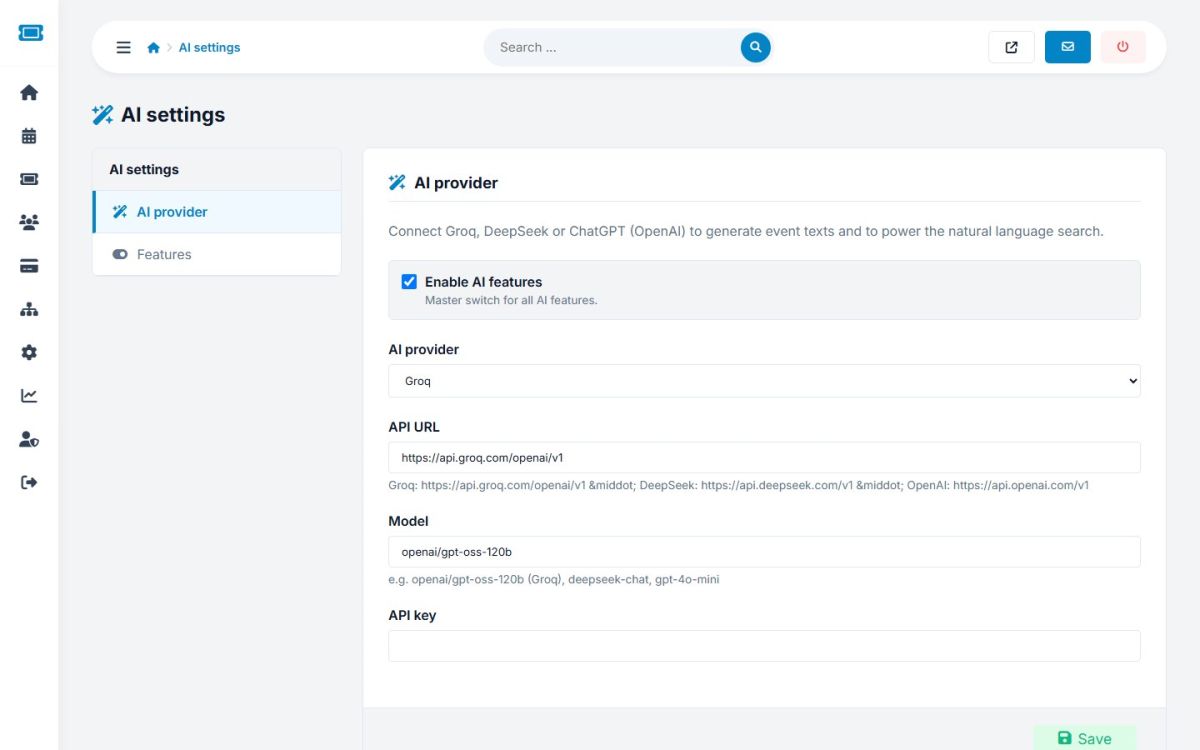
Connecting a provider
- Open Settings → AI settings.
- Tick Enable AI features. This is the master switch.
- Choose the AI provider. The API URL and a suggested model are filled in for you.
- Paste your API key from the provider's website.
- Save, then press Test connection. A green message confirms it works.
| Provider | API URL | Example model |
|---|---|---|
| Groq | https://api.groq.com/openai/v1 | openai/gpt-oss-120b |
| DeepSeek | https://api.deepseek.com/v1 | deepseek-chat |
| ChatGPT (OpenAI) | https://api.openai.com/v1 | gpt-4o-mini |
| Custom | any OpenAI compatible service | your model name |
Model names change over time. Check the provider's documentation and type the model you prefer in the Model field.
Features
- AI writing assistant in event forms: see AI writing assistant
- AI search on the home page: see AI event search
Each can be switched off separately. When AI is off or the key is missing, the buttons and the AI search box are hidden or fall back to normal search.
The API key is stored in the database and never displayed again. If the test fails, the message shows the provider's own error, such as a wrong key, no credit or an unknown model.
Last updated