Managing Organizers, Attendees and Newsletter
The Users menu manages the two kinds of public accounts and your e-mail audience.
Organizers
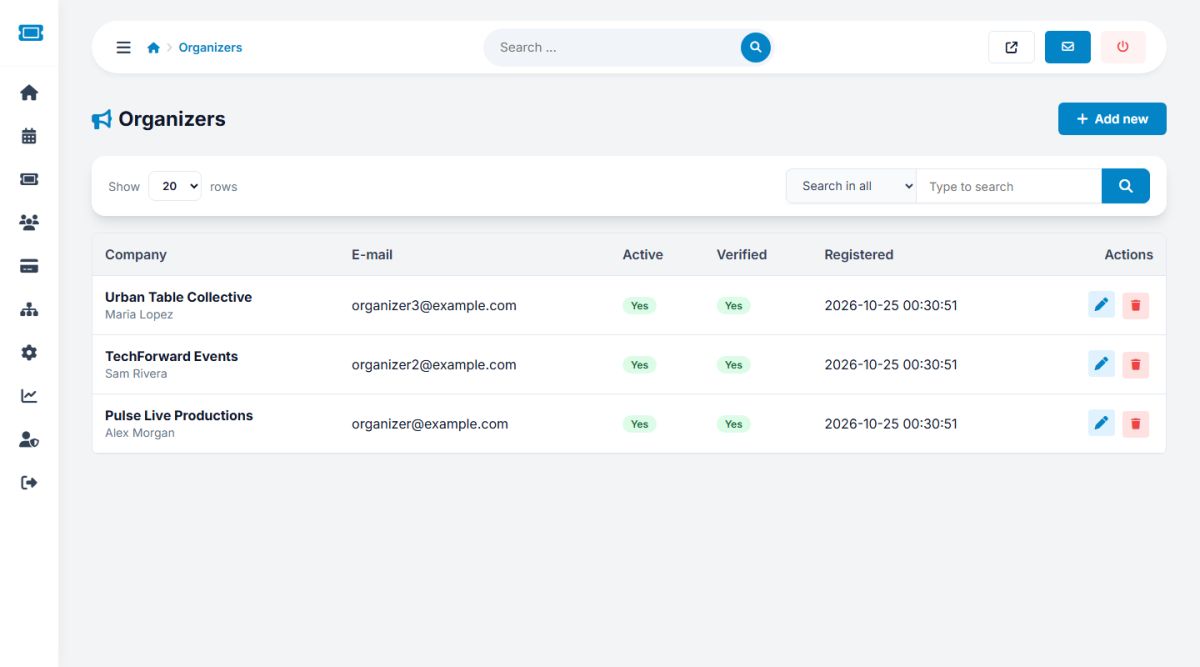
Users → Organizers lists the registered advertisers. Search by company, e-mail or contact person. Use Add new to create an account or the pencil to edit one:
- Company, contact person, e-mail, phone, website, address and description
- Password: leave it empty to keep the current one
- Active: switch off to block the account and its login
- Verified organizer: shows the blue badge on events and the profile page
Deleting an organizer does not delete their events automatically. Remove or reassign them in Manage events first.
Attendees
Users → Attendees works the same way for ticket buyers: name, e-mail, password, phone, city, language, newsletter and active status. Use it to help someone who cannot log in, or to deactivate an abusive account.
Newsletter
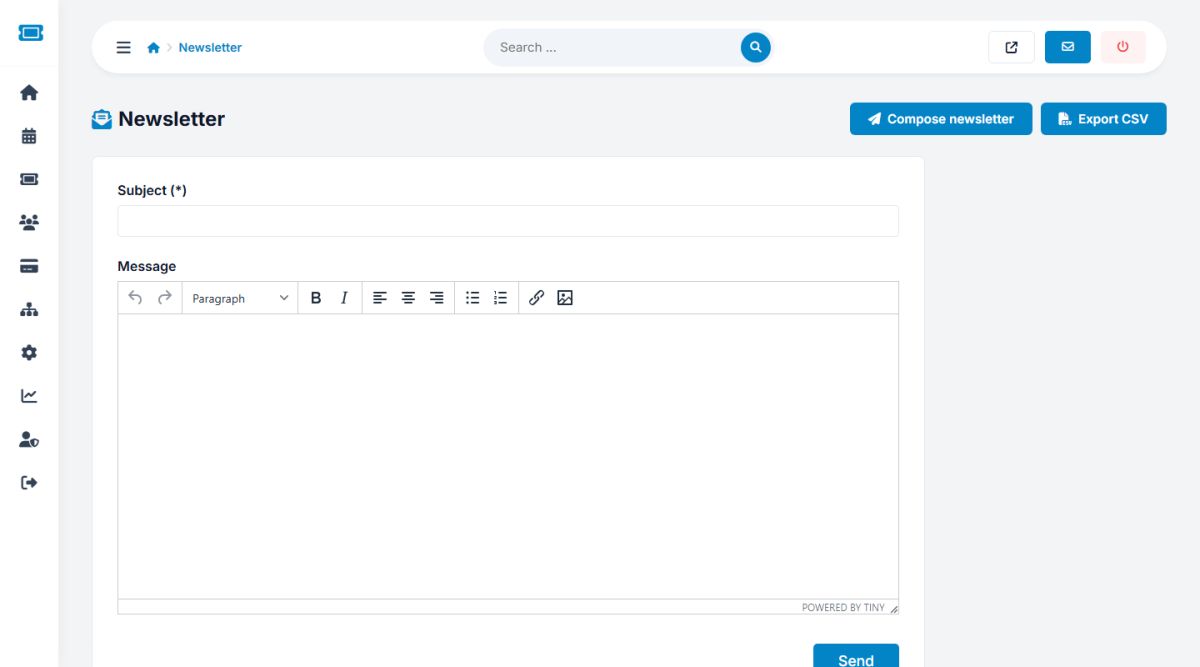
Visitors subscribe with the form in the website footer. Users → Newsletter lists the subscribers. The recipients of a newsletter are the subscribers plus attendees and organizers who ticked the news option. To send one:
- Press Compose newsletter.
- Enter the subject and write the message in the editor.
- Press Send. The message is wrapped in a branded e-mail template with a button to your events.
Each send reaches up to 500 recipients. Export CSV downloads all addresses for use in another tool.
Reliable delivery needs SMTP, see General settings and e-mail. For large lists use a dedicated newsletter service and import the CSV there.
Last updated