Searching for jobs
The search results page gives jobseekers fast filters and clear result cards, so they can find a matching job in a few clicks.
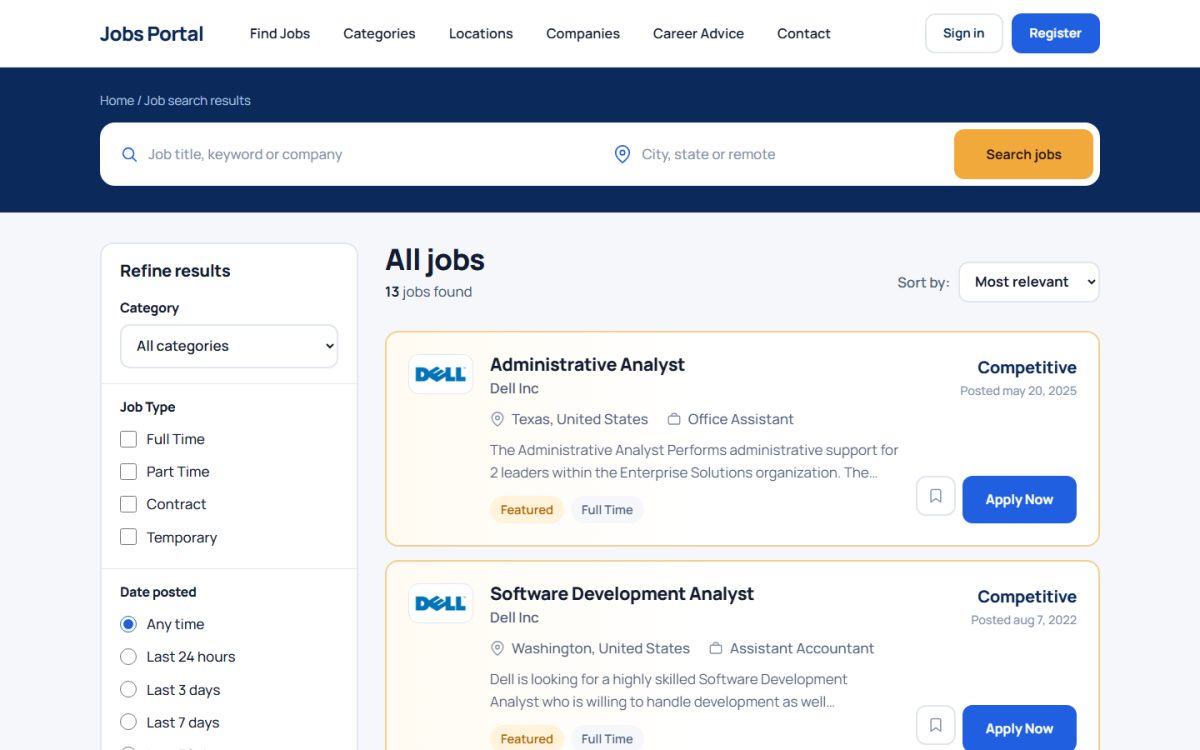
Search and filters
| Filter | What it does |
|---|---|
| Keyword and location | Searches titles and descriptions; the location field accepts cities and regions from your location list. |
| Category | Limits results to a category and its sub-categories. |
| Job type | Full time, part time, contract, internship or temporary (editable in Field Values). |
| Date posted | Any time, last 24 hours, 3 days, 7 days and more. |
| Salary range | From, to and period (hour, week, month, year). The preset values come from Salary Range Presets in Job Portal settings. |
| Company and ZIP | Search by company name; optional ZIP code and radius search when enabled in the settings. |
Result cards
Each result shows the company logo, job title, employer, location, category, a short description, job type, salary and badges such as Featured or New. Visitors can sort by relevance or date, move between pages and press Apply Now or the bookmark icon to shortlist a job. Shortlisted jobs are remembered for visitors without an account.
Search suggestions
While typing, the keyword box suggests job titles, categories or both. Choose the behaviour in Job Settings → Configuration Options → Search Suggestions Type and manage the keyword list in Search Keywords.
Create an alert from a search
At the bottom of the results visitors can save the current search as an e-mail job alert.
External job feeds
If you enable job feeds, results from partner job APIs are added after your own jobs, so the page is never empty on a new site.
Advanced search
The Advanced Search page offers every filter on one screen, with category and location menus and salary options.
Last updated