The jobseeker dashboard
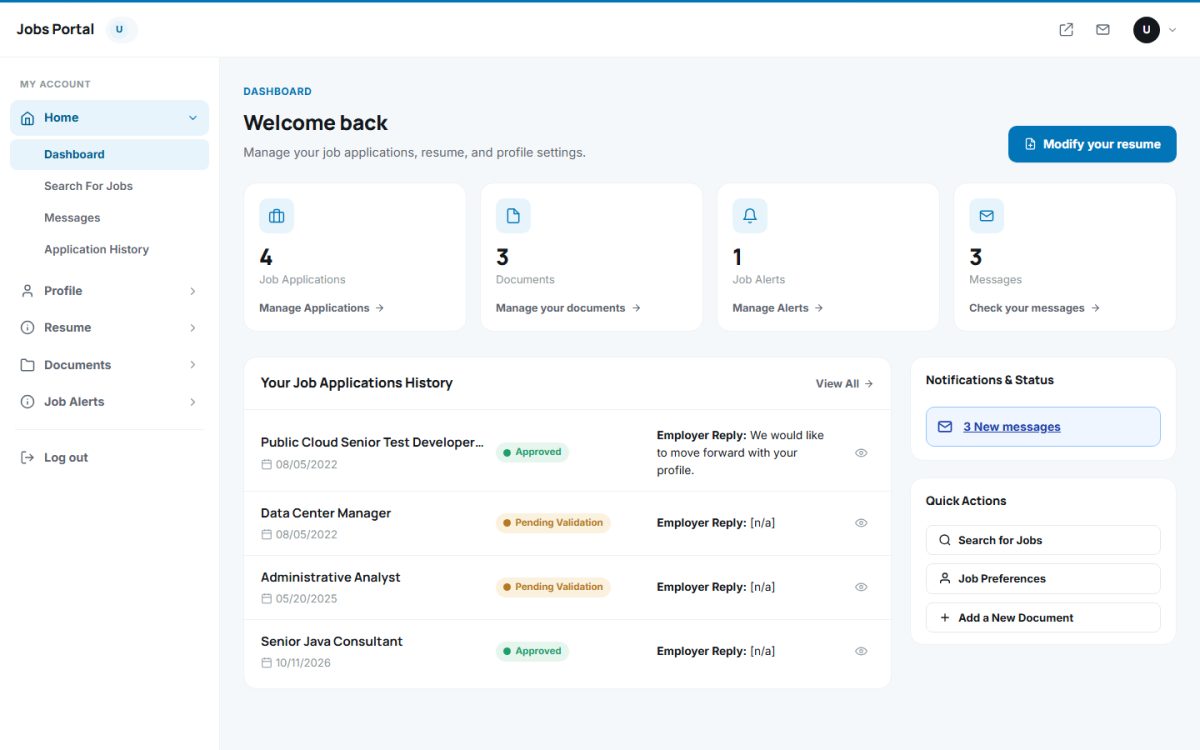
After login every candidate lands on a personal dashboard at /JOBSEEKERS that summarizes their job search.
What the dashboard shows
- Four counters – job applications, documents, job alerts and messages, each with a link to the matching section.
- Your Job Applications History – the latest applications with the date, the status (Pending Validation or Approved) and the reply written by the employer.
- Notifications & Status – for example the number of new messages.
- Quick Actions – search for jobs, edit job preferences and add a new document.
- Modify your resume button at the top.
The menu
| Menu section | Contains |
|---|---|
| Home | Dashboard, Search For Jobs, Messages, Application History |
| Profile | Edit Your Profile, Change Password, Job Preferences, Statistics |
| Resume | Create Your Resume, Visual Editor, Resume Creator, Video Resume |
| Documents | Add A New Document, My Documents |
| Job Alerts | Current Job Alerts, New Job E-mail Alert |
The top bar has a shortcut back to the public website, the inbox and the account menu with Log out. The language of the panel follows the language chosen on the public site.
Search for jobs inside the panel
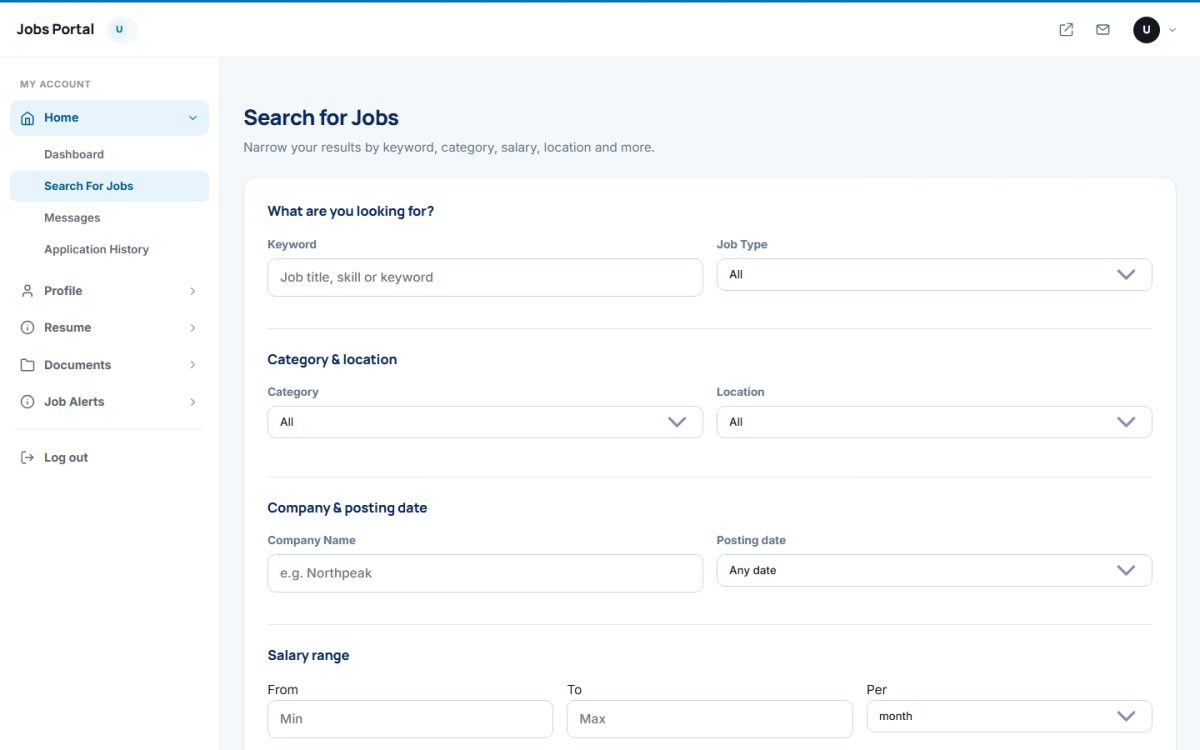
Home → Search For Jobs offers the same filters as the public site (keyword, job type, category, location, company, date posted and salary range) so candidates never have to leave their account.
Last updated