How to add the tracking code to your website
The tracking code is a single PHP line that includes track.php. The admin panel can add it to your index.php for you, or you can paste it yourself.
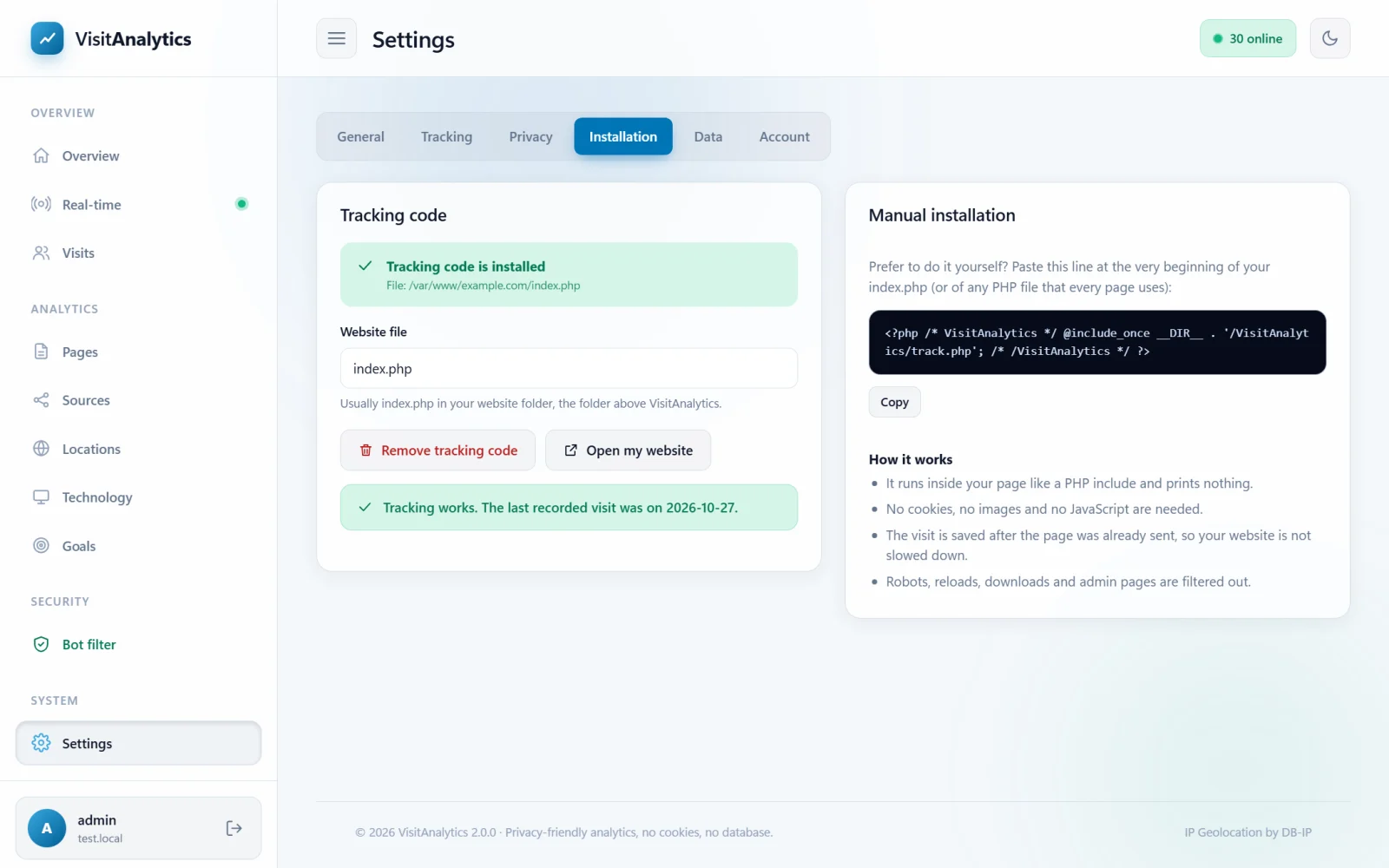
Automatic installation
- Open Settings → Installation.
- Check the Website file. It is
index.phpby default – the file in the folder above VisitAnalytics. You can enter another PHP file of your website, for exampleheader.phporincludes/init.php, as long as it runs on every page. - Press Install tracking code.
VisitAnalytics saves a backup copy as index.php.va-backup, then inserts the line right after the opening <?php tag. If the file starts with declare(strict_types=1); or a namespace, the line is placed after them so your code keeps working.
Installation status
| Status | Meaning |
|---|---|
| Tracking code is installed | The file contains the VisitAnalytics line. You can remove it with the red button. |
| Tracking code is not installed yet | The file exists and is writable; press the install button. |
| This file does not exist | Check the file name in the field. |
| This file can not be changed automatically | The file is read-only for PHP. Change its permissions or use the manual method. |
Manual installation
Paste this line at the very beginning of your PHP file (right after <?php is also fine, as part of an existing PHP block):
<?php /* VisitAnalytics */ @include_once __DIR__ . '/VisitAnalytics/track.php'; /* /VisitAnalytics */ ?>
The exact line for your folder name and file is always shown in Settings → Installation under Manual installation; copy it with the Copy button.
WordPress, Joomla and other systems
- WordPress: the
index.phpin the WordPress root runs on every front-end request, so the default file works. Do not edit theme files, because theme updates would remove the line. - Frameworks (Laravel, Symfony...): add the line to the front controller, for example
public/index.php, and set the file name accordingly. - Custom websites: any shared header or bootstrap file included by all pages is fine.
Removing the code
Open the same page and press Remove tracking code. The line is deleted from the file; your statistics stay. See Updating and uninstalling VisitAnalytics.
What the line does
- It runs inside your page like any PHP include and sets no cookies. It adds one tiny script before
</body>that confirms real visitors (human verification). - It decides quickly if the request is a real page view; the visit is written to disk after the page has been sent to the visitor.
- Errors are caught: a problem in VisitAnalytics can never break your website.
After installing, open your website and check Real-time. If nothing appears, read Troubleshooting: no visits recorded, wrong IP, empty reports.
Last updated