Import and export listings (CSV)
Moving from another site or managing a big dealer stock? CSV import and export save hours.
Admin › Car listings › Export / Import
Export
Click Export CSV to download all listings as a semicolon-separated file that opens directly in Excel or Google Sheets. HTML is stripped from descriptions.
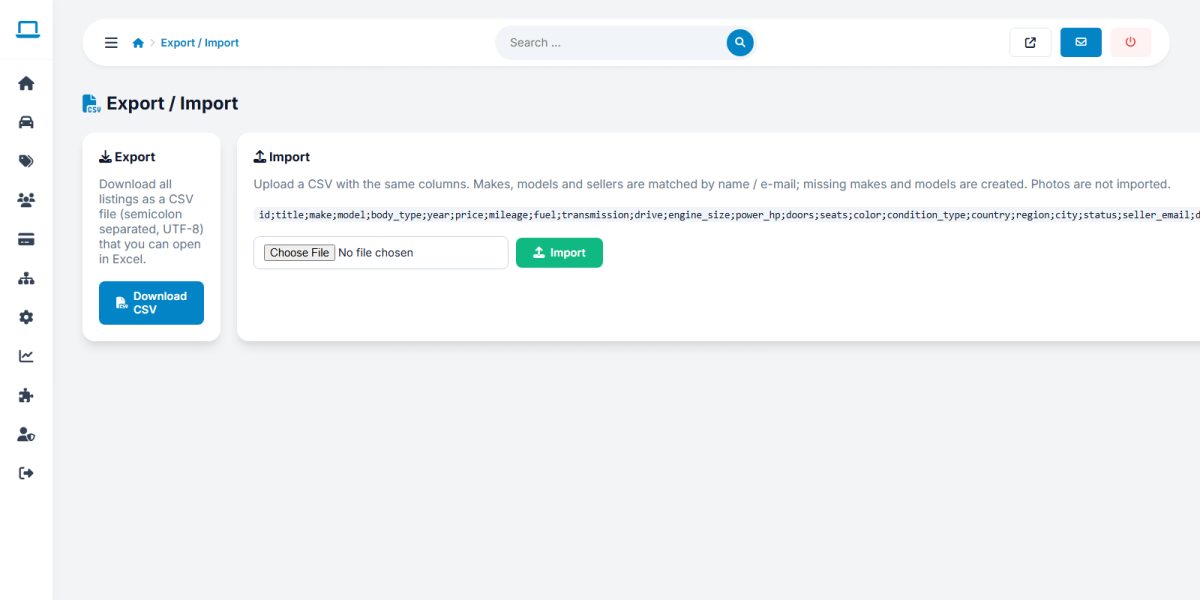
Import
- Export once to get a file with the correct columns, or download the sample.
- Add or edit rows in your spreadsheet. Keep the header row unchanged.
- Save as CSV (semicolon delimiter, UTF-8).
- Upload the file in the Import box and confirm.
The importer reports how many rows were created and which rows were skipped and why.
Tips for a clean import
- Use exactly the make and model names that exist in the catalog.
- Each row needs a valid seller (e-mail or ID). Create the sellers first.
- Use plain numbers for price and mileage, with no currency symbols.
- Photos are attached afterwards in the edit form, or by URL if your file contains image links.
Always back up the database before a large import so you can undo it.
Last updated