Set up Stripe payments
Car Portal uses modern Stripe Checkout: the buyer pays on Stripe’s own secure page, so card data never touches your server.
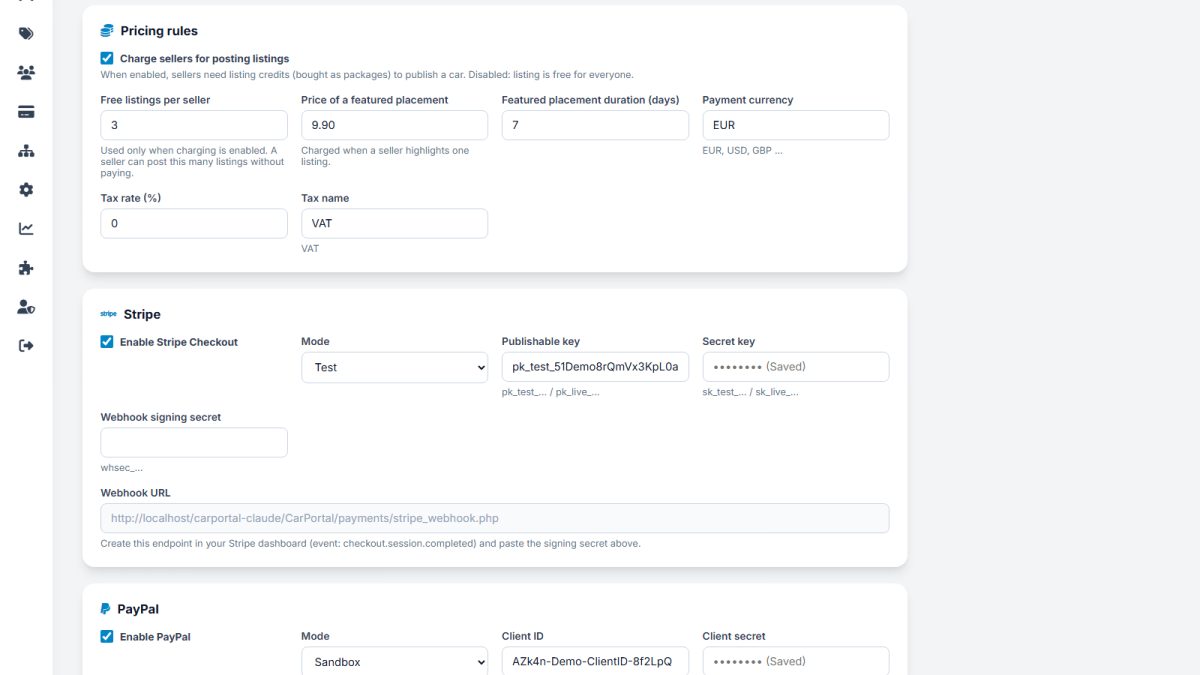
Admin › Payments › Payment settings › Stripe
- Create or open your Stripe account at stripe.com and complete the business details needed for live payments.
- Copy the API keys. In the Stripe dashboard open Developers › API keys. Copy the Publishable key (
pk_test_...) and the Secret key (sk_test_...). - Enter them in Car Portal. In Payments › Payment settings › Stripe, tick Enable Stripe Checkout, set the mode to Test and paste both keys.
- Add the webhook. In Stripe open Developers › Webhooks › Add endpoint. As the address use the URL shown in Car Portal, it looks like
https://your-site/payments/stripe_webhook.php. Select the eventcheckout.session.completed. - Paste the signing secret. Stripe shows a Signing secret (
whsec_...) for the endpoint. Paste it in Car Portal’s Webhook secret field and save.
Test it
Buy a package as a seller and use the Stripe test card 4242 4242 4242 4242, any future expiry date and any CVC. The order should become Paid and credits appear. Check Orders.
Go live
- Switch Stripe to live mode in its dashboard and copy the live keys and create a live webhook.
- In Car Portal set the mode to Live and replace both keys and the webhook secret.
Payments are verified twice: when the buyer returns, and by the webhook. This guarantees credits are delivered even if the buyer closes the browser after paying. Your site must be reachable over HTTPS for the webhook.
Last updated