Orders and invoices
All sales appear in the Orders list, whichever payment method was used.
Admin › Payments › Orders
The orders list
Columns: order number, date, seller, item, provider (Stripe, PayPal, bank), amount, discount, tax, coupon and status. Filter by status, provider or date.
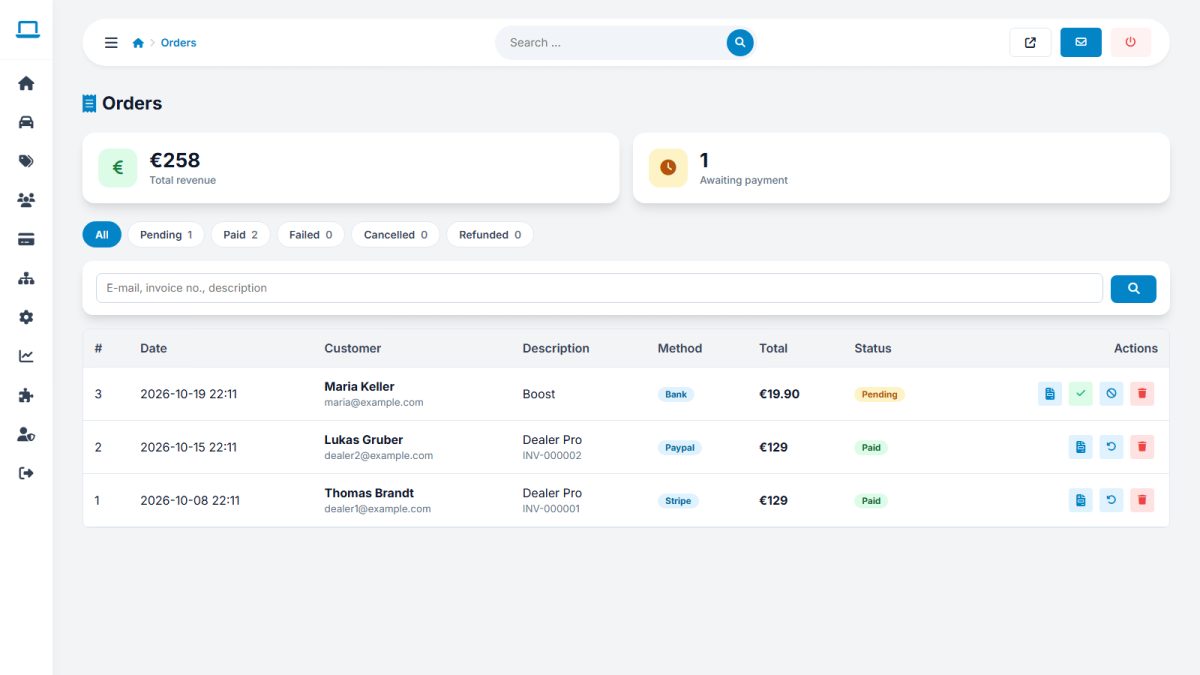
Statuses
| Status | Meaning |
|---|---|
| Pending | Created but not yet paid (e.g. bank transfer waiting) |
| Paid | Payment confirmed; credits or featured status delivered once |
| Failed / Cancelled | Payment did not complete |
| Refunded | Marked as refunded by the admin |
Approving a bank transfer
- Check your bank account for the transfer with the order reference.
- Open the order and press Approve.
- The seller receives the credits, an invoice number is created and a confirmation e-mail is sent.
Invoices
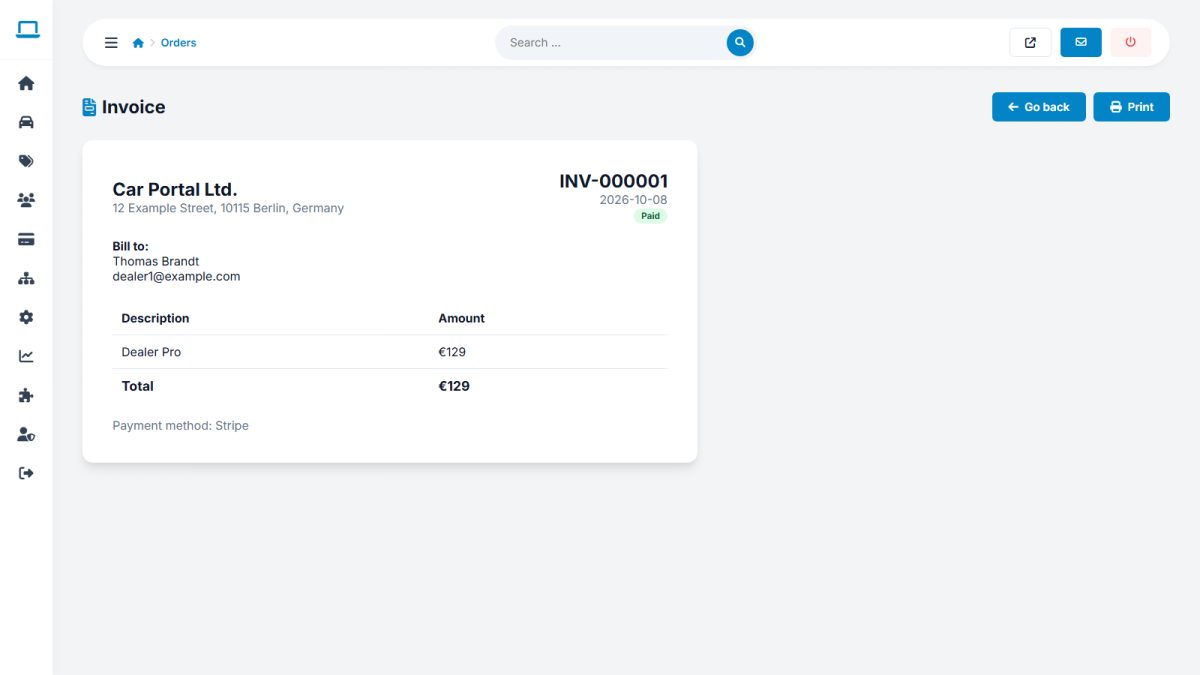
Open an order to view or print its invoice. Numbering and company data are set in Payment settings.
Card and PayPal payments are verified with the provider on return and again by webhook, and each order can only be fulfilled once, so duplicates are not possible. Refunds themselves are made in the Stripe or PayPal dashboard; mark the order refunded here for your records.
Last updated