Checkout: delivery, pickup and payment
The checkout is a single, short page. It collects only what the restaurant needs to prepare and deliver the order.
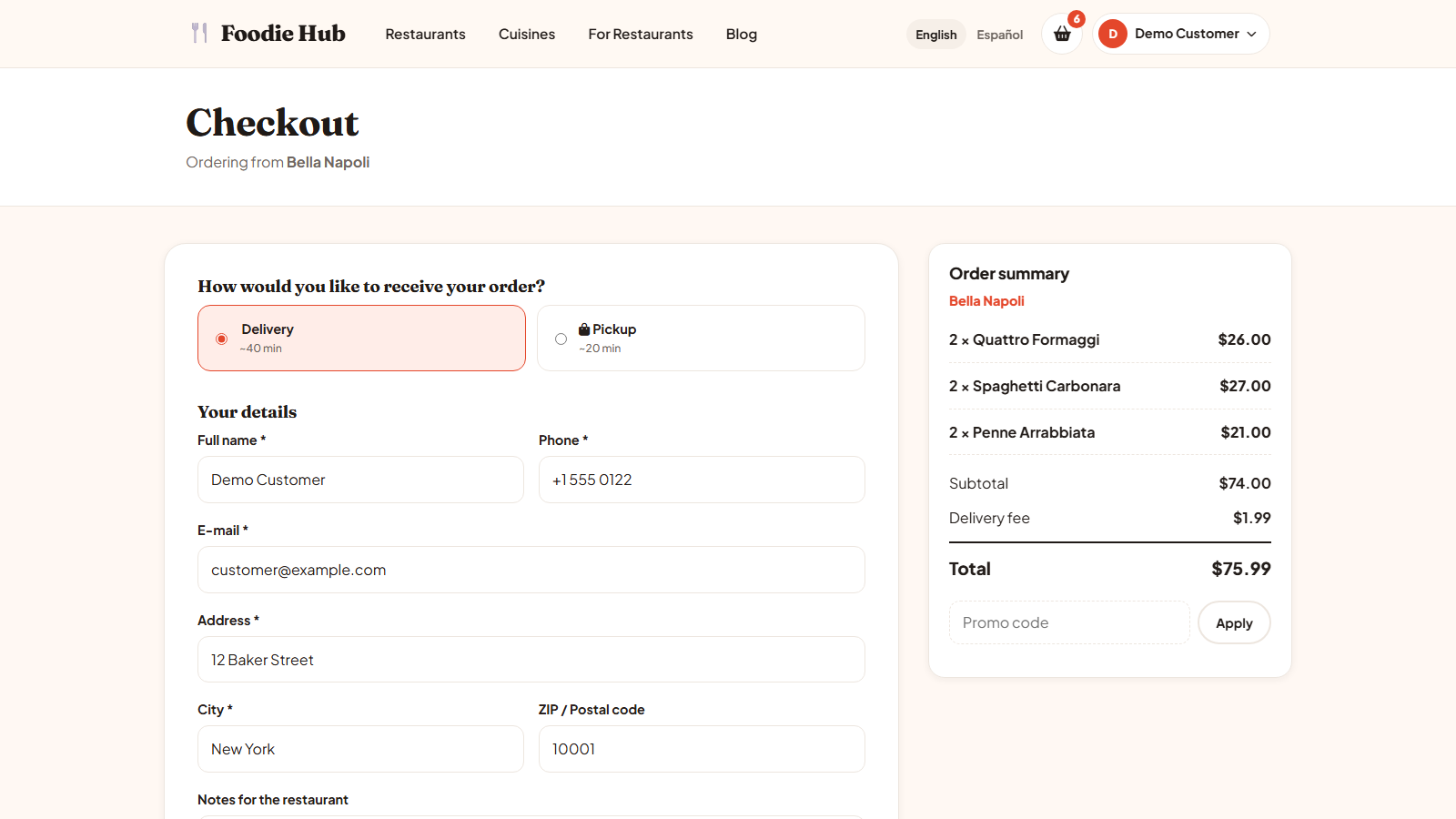
Step by step
- Delivery or pickup. Each option shows its estimated time. Pickup hides the address fields.
- Your details. Name, phone and e-mail - already filled in for logged-in customers. For delivery the address, city and postal code are required.
- Notes for the restaurant. Floor, door code, allergies.
- Tip. Choose a percentage, enter your own amount, or leave no tip (you can switch tips off in Payments → Payment settings). Tips always go to the restaurant.
- Payment. Pay in cash on delivery or pickup, or pay online with a card (and PayPal when enabled).
- Place order. The customer sees the confirmation page and receives an e-mail.
The order summary
The right column lists every dish, the subtotal, the discount of a promo code, the delivery fee, the tip and the total. The minimum order of the restaurant is checked again on the server, so it cannot be bypassed.
Payment methods
| Method | When it is offered |
|---|---|
| Cash on delivery / pickup | If the restaurant accepts cash. |
| Card (Stripe Checkout) | If Stripe is enabled and the restaurant accepts online payments. Supports cards, Apple Pay and Google Pay. |
| PayPal | If PayPal is enabled and the restaurant accepts online payments. |
Online payments happen on the secure page of the payment provider. The customer returns to your site, where the script verifies the payment with the provider before marking the order as paid - the return link alone is never trusted.
Guest checkout
By default customers can order without creating an account; the order is tracked with a private link sent by e-mail. You can require an account by switching off Guest checkout in configuration options.
If the payment is interrupted, the order stays open and the order page shows a Pay now button, so the customer can finish paying without re-entering anything.
Last updated