Restaurant page, menu and basket
Each restaurant has its own page that works as a mini website: a cover photo and logo, the key facts, an online menu and a basket that follows the visitor while they scroll.
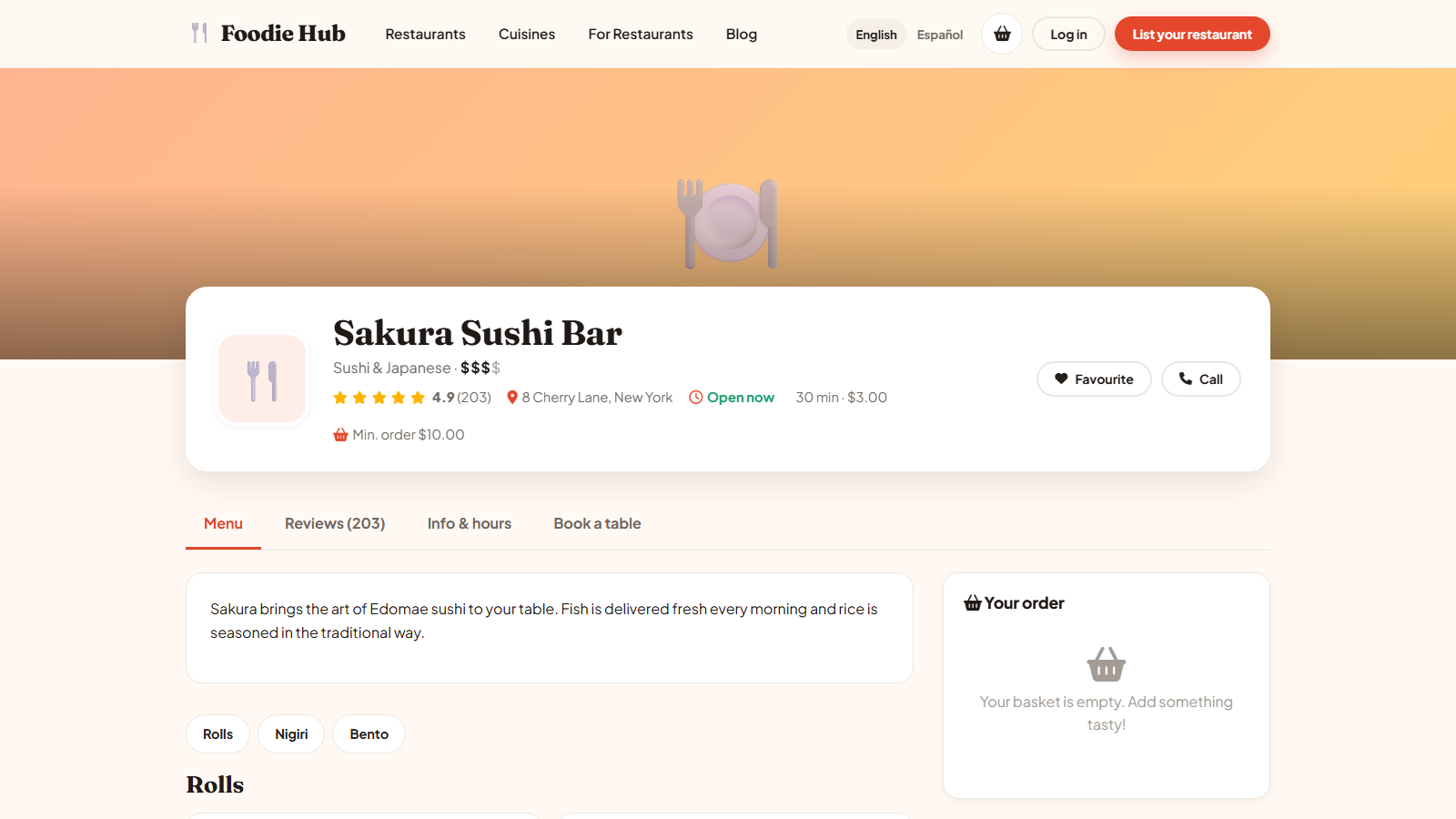
The header
The header shows the name, cuisine, price level, rating with the number of reviews, an Open now / Closed now badge (calculated from the opening hours), delivery time and delivery fee. Buttons let the visitor add the restaurant to their Favourites, call the restaurant or book a table.
The three tabs
- Menu - sections (Pizza, Pasta, Desserts...), dishes, prices and badges.
- Reviews - the average rating, all approved reviews and replies from the restaurant. See reviews.
- Info and hours - description, address with a map link, phone, and opening hours for every day.
The menu
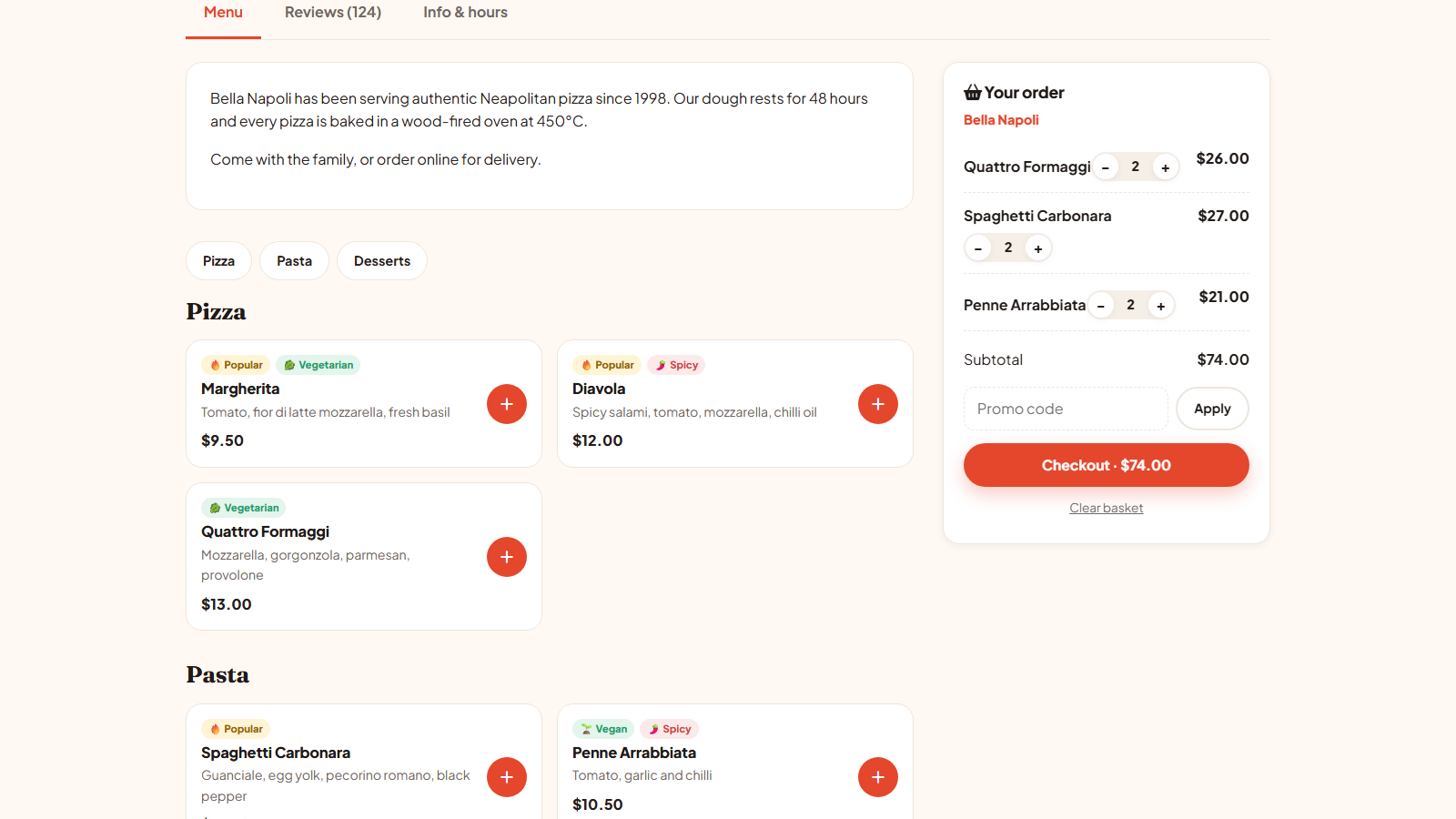
Dishes can carry badges: Popular, Vegetarian, Vegan, Spicy, Gluten free (GF). A dish that the restaurant switched off shows as Sold out. A + button adds simple dishes straight to the basket. Dishes with options open a pop-up where the customer chooses, for example, a size (required) and extras such as cheese or bacon (optional). The price updates as the choices change, and a note field accepts special instructions like "no onions".
The basket
- The basket updates instantly, without reloading the page.
- Quantities can be changed with - and +; the line disappears at zero.
- A basket holds dishes of one restaurant. Adding a dish from another restaurant asks whether to start a new basket.
- The restaurant's minimum order and its free delivery over amount are shown and enforced.
- A promo code field applies the restaurant's discount codes (see promo codes).
- On phones a floating basket button opens the basket.
When the basket is ready, the Checkout button continues to the checkout page.
Online ordering can be turned off for a single restaurant in its profile, or for the whole marketplace in configuration options. The menu is then shown for information only.
Last updated